> ## Documentation Index
> Fetch the complete documentation index at: https://docs.grdd.dev/llms.txt
> Use this file to discover all available pages before exploring further.
# Testimonial page
# Managing Customer Testimonials
## Overview
Customer testimonials build trust and credibility with potential clients. This guide walks you through adding and managing testimonials on your public profile.
## Step-by-Step Guide
### 1. Access Profile Settings
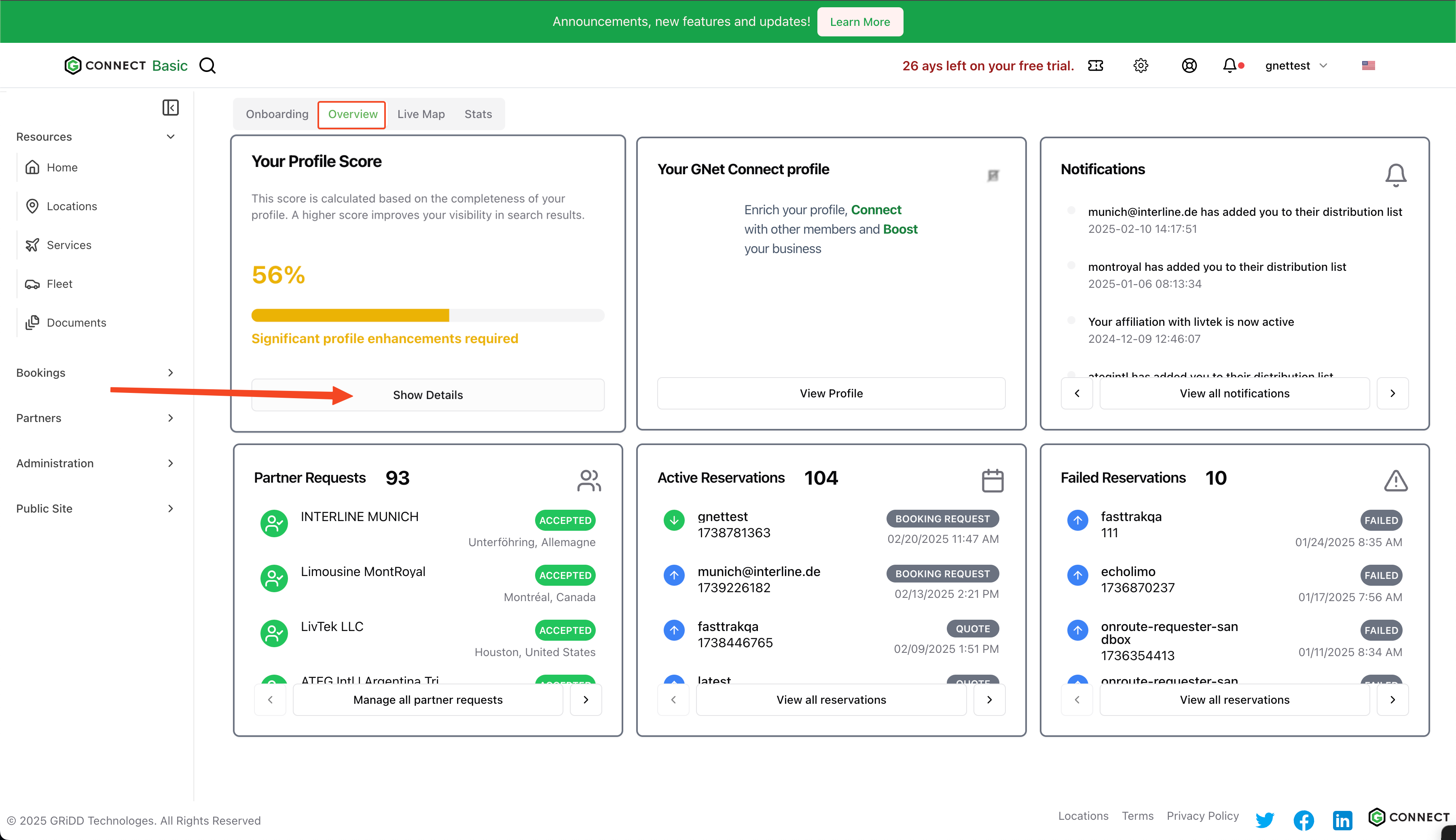
Click on your score card to view your profile details.
 ### 2. Navigate to Testimonials
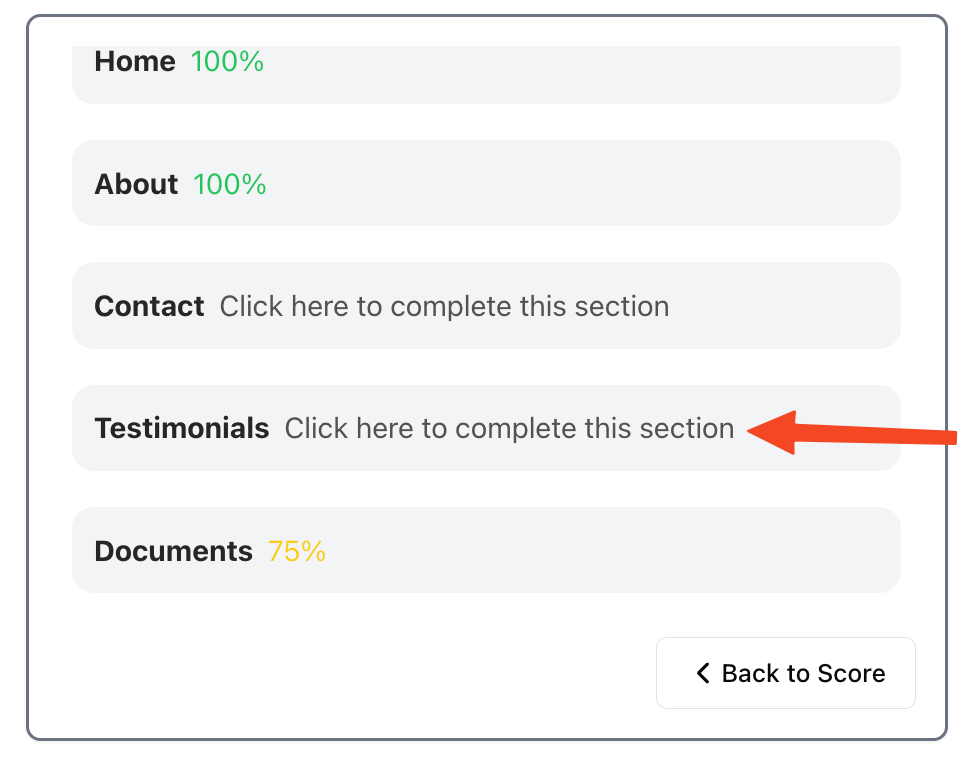
Click on "testimonials" in the navigation menu to access the testimonials section.
### 2. Navigate to Testimonials
Click on "testimonials" in the navigation menu to access the testimonials section.
 ### 3. Add New Testimonial
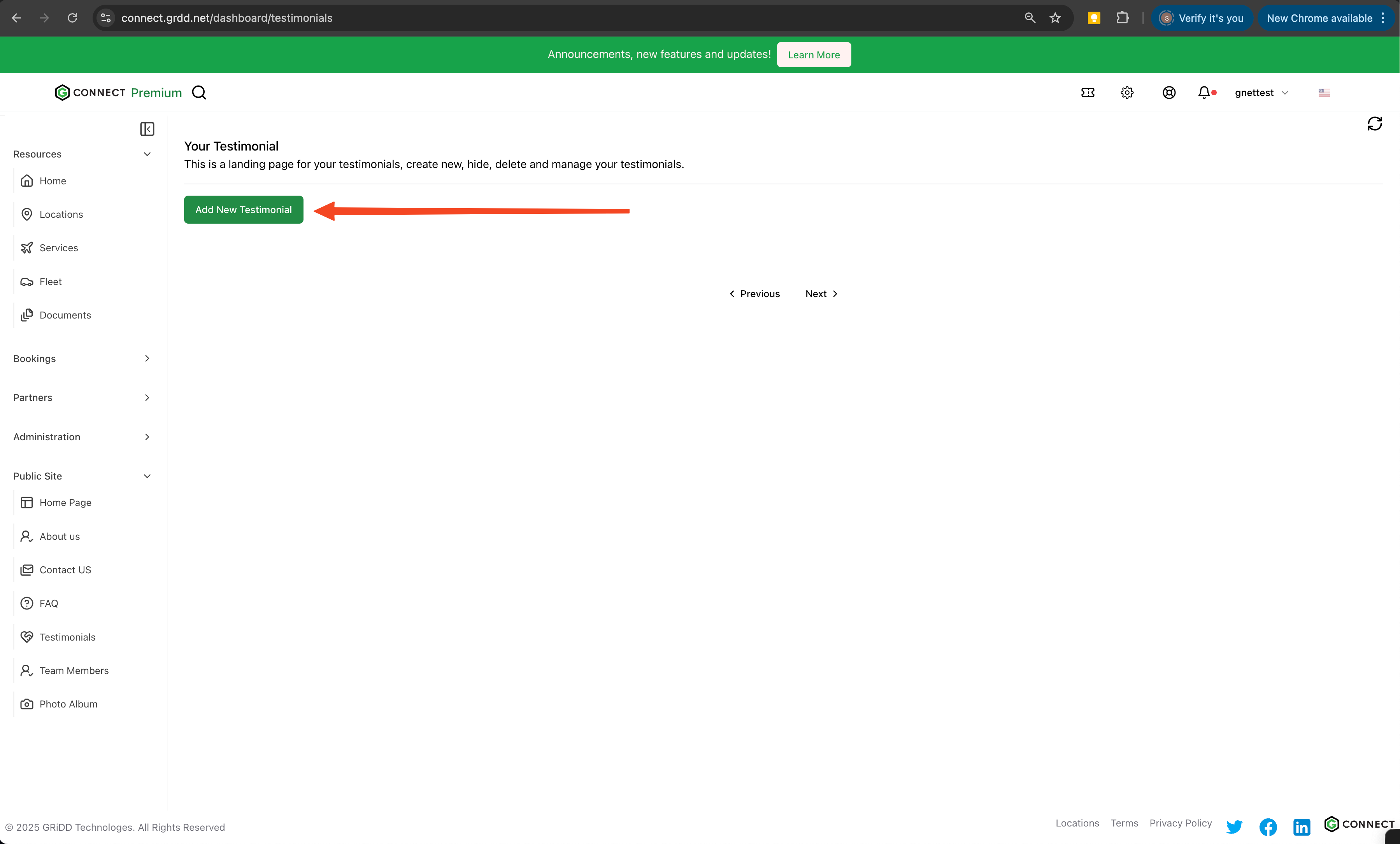
Click on "add new testimonial" to begin creating a testimonial entry.
### 3. Add New Testimonial
Click on "add new testimonial" to begin creating a testimonial entry.
 ### 4. Enter Testimonial Details
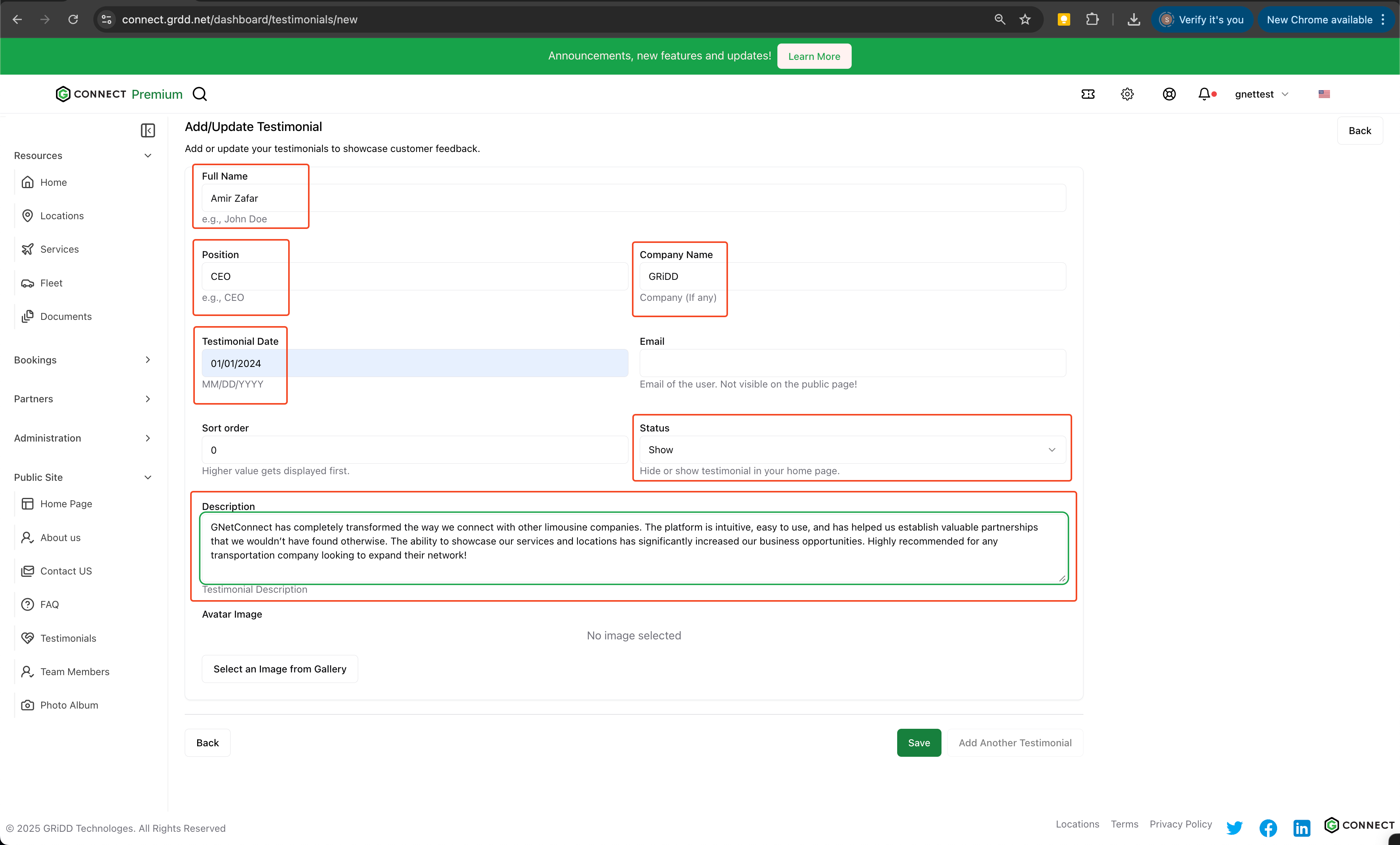
Complete all required fields:
* Customer name
* Rating
* Testimonial text
* Service date
* Location (if applicable)
* Display order (controls positioning on page)
### 4. Enter Testimonial Details
Complete all required fields:
* Customer name
* Rating
* Testimonial text
* Service date
* Location (if applicable)
* Display order (controls positioning on page)
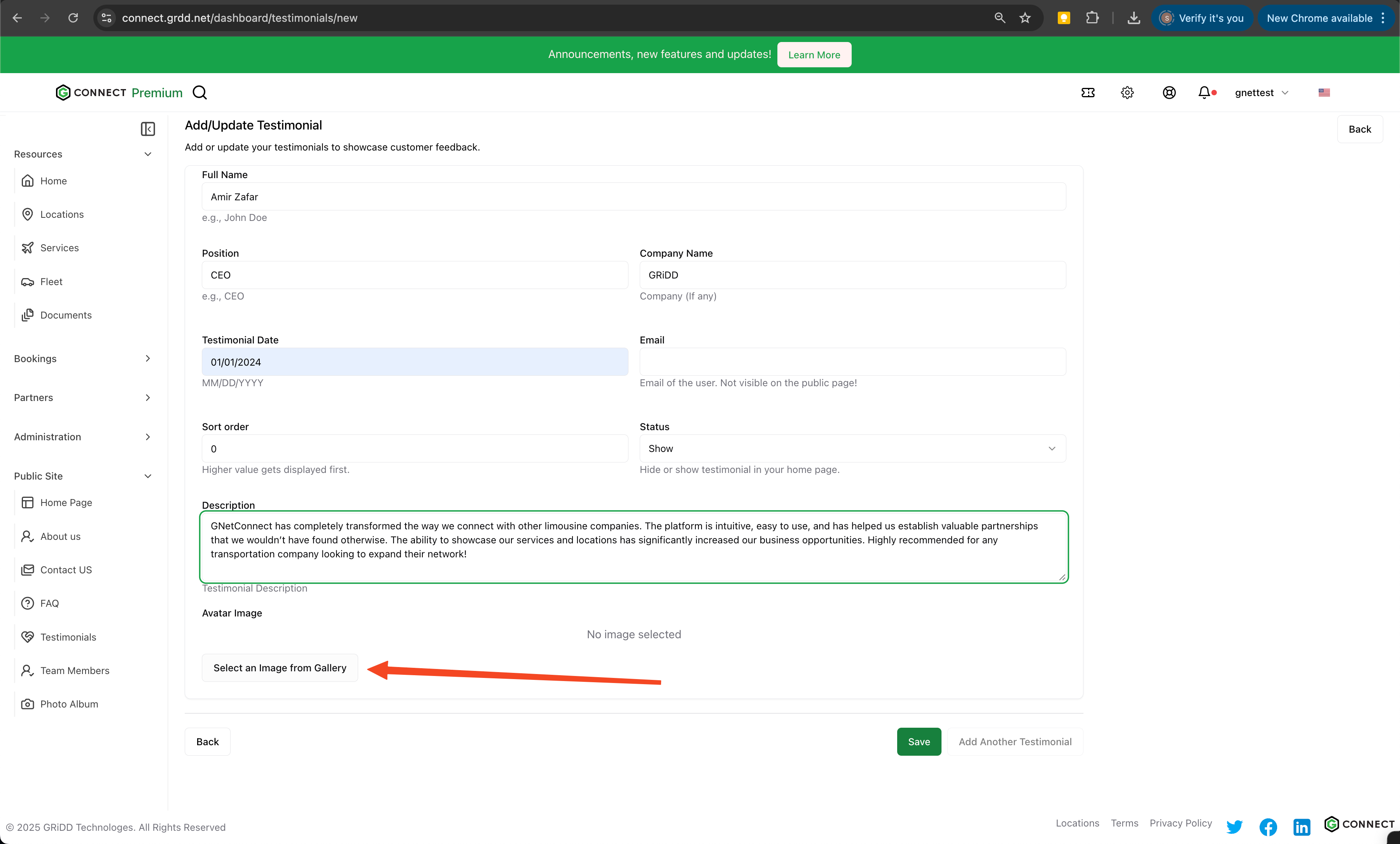
 ### 5. Add Visual Content
Enhance your testimonial with customer photos or relevant images:
1. Click on "Select an Image from Gallery"
2. Choose an appropriate image that represents the testimonial
### 5. Add Visual Content
Enhance your testimonial with customer photos or relevant images:
1. Click on "Select an Image from Gallery"
2. Choose an appropriate image that represents the testimonial
 ### 6. Image Management
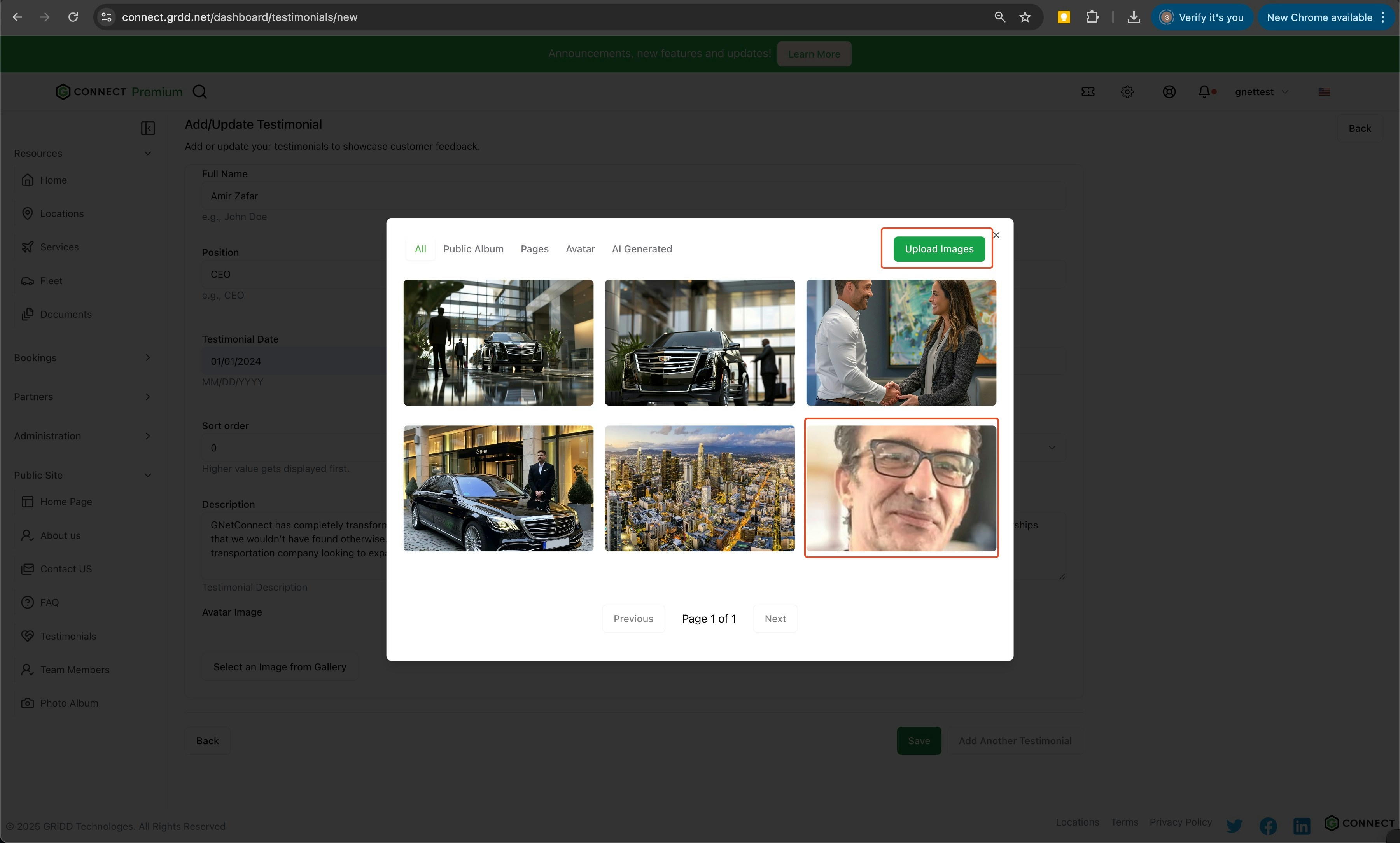
You have two options for adding images:
* Upload a new image from your device
* Select from previously uploaded images
### 6. Image Management
You have two options for adding images:
* Upload a new image from your device
* Select from previously uploaded images
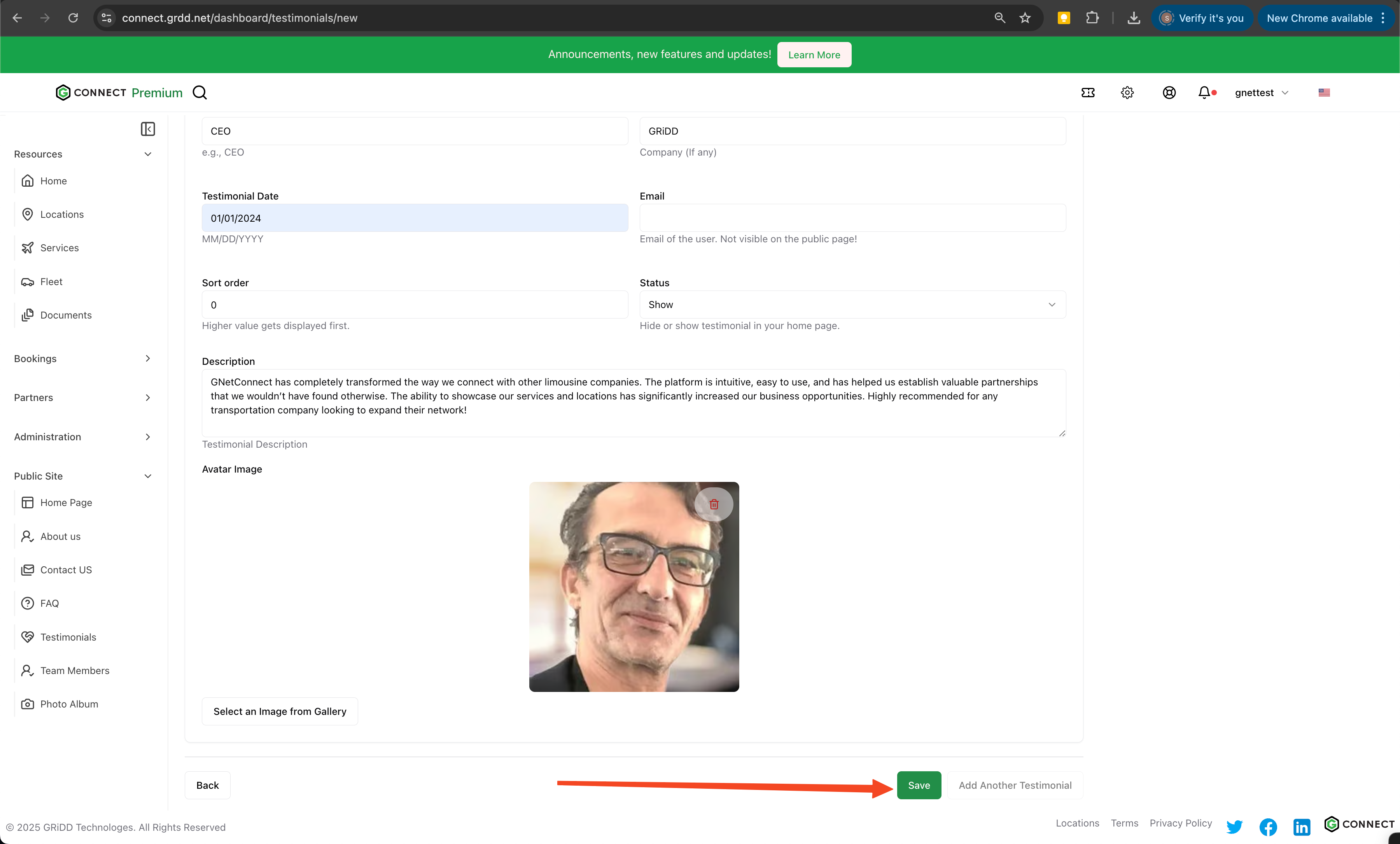
 ### 7. Save Testimonial
Click on "save" to publish your testimonial.
### 7. Save Testimonial
Click on "save" to publish your testimonial.
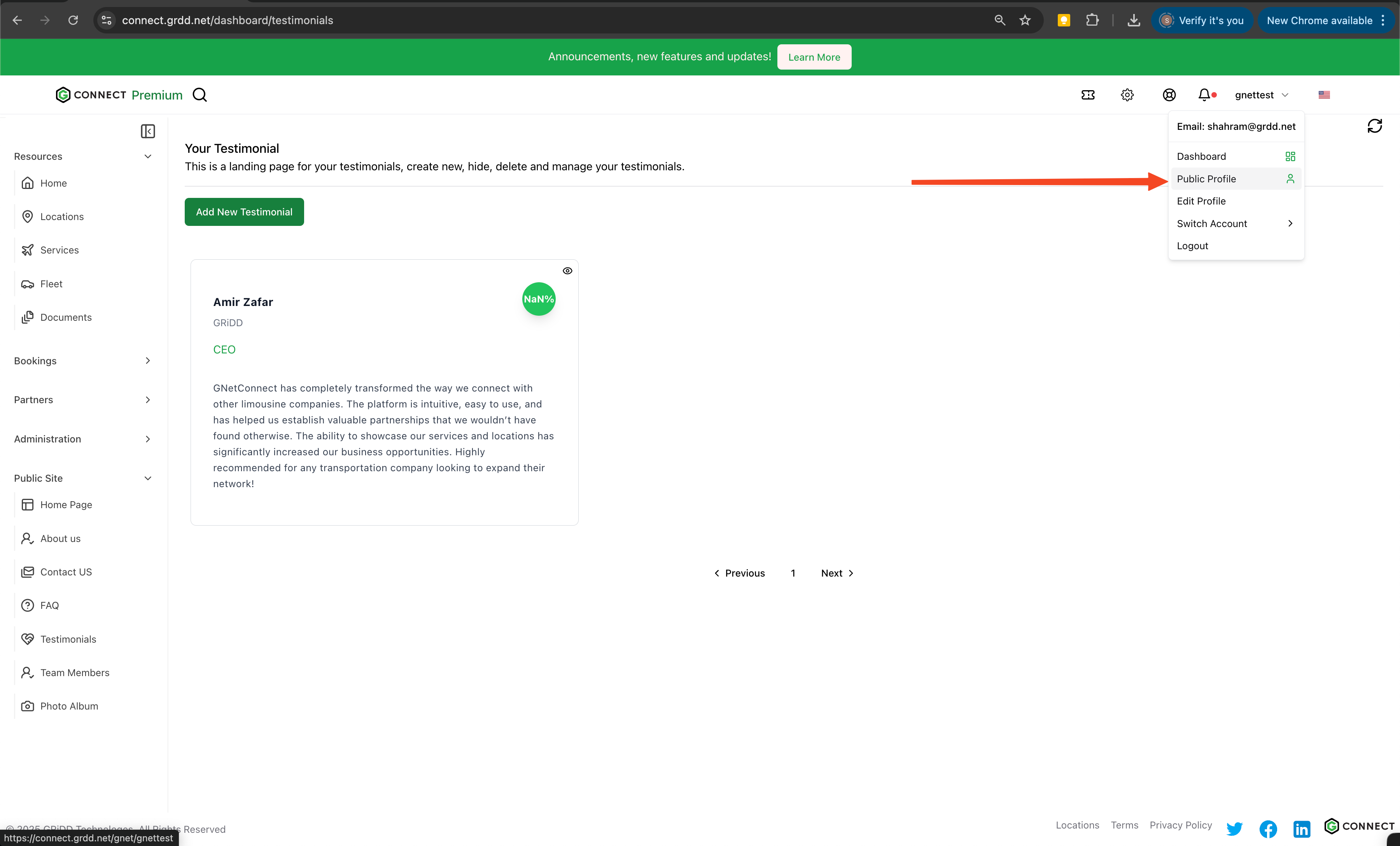
 ### 8. Preview Changes
Click on "public profile" to review your new testimonial.
### 8. Preview Changes
Click on "public profile" to review your new testimonial.
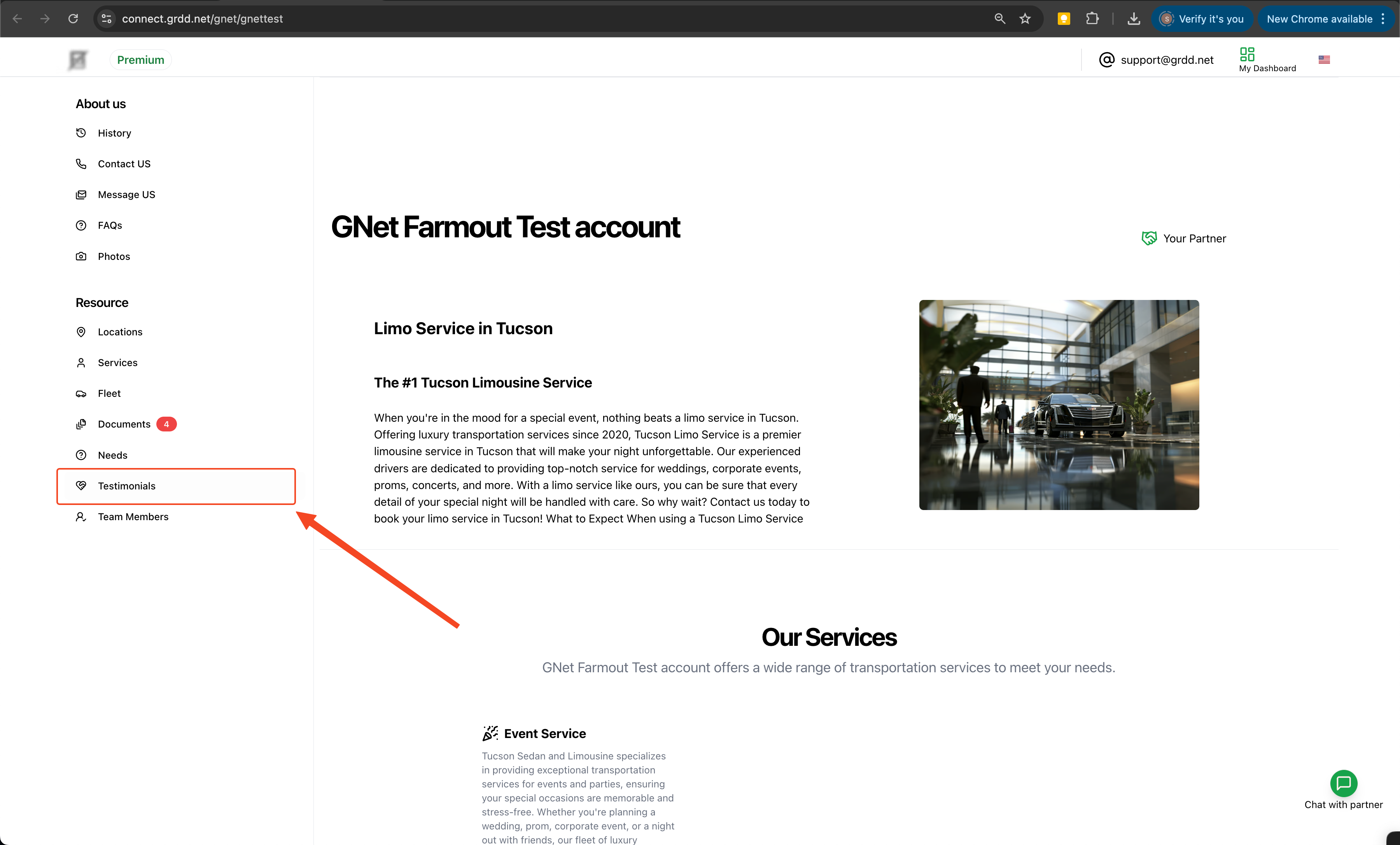
 ### 9. View Testimonials Section
From your public profile, click on "testimonials" in the left navigation menu.
### 9. View Testimonials Section
From your public profile, click on "testimonials" in the left navigation menu.
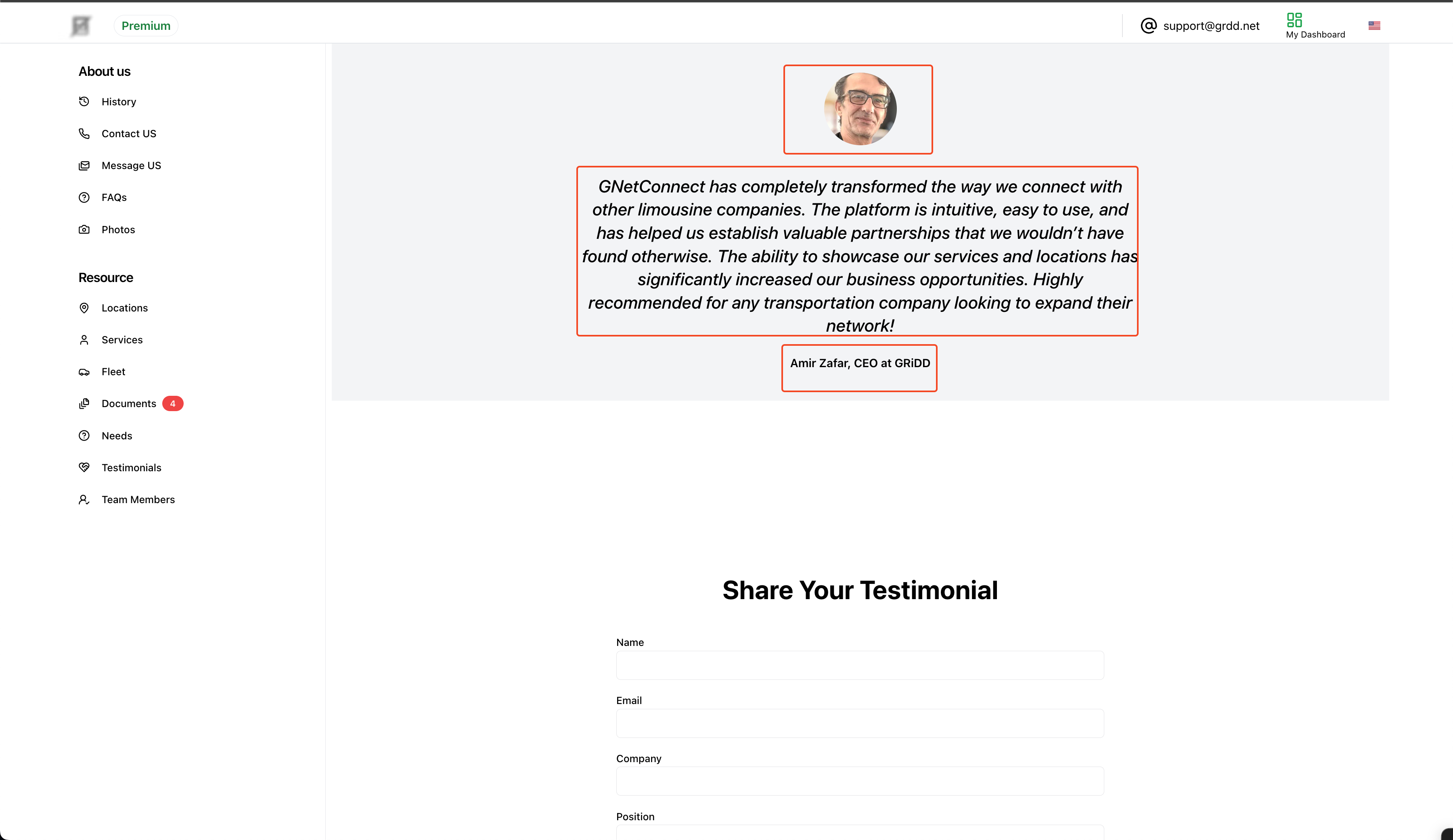
 ### 10. Final Review
Review your published testimonial to ensure all content appears correctly.
### 10. Final Review
Review your published testimonial to ensure all content appears correctly.
 ## Best Practices
### Content Guidelines
* Use authentic, verified customer testimonials
* Include specific details about services provided
* Maintain a balanced mix of testimonials
* Update regularly with fresh content
### Presentation Tips
* Display the most impactful testimonials prominently
* Include customer photos when available
* Keep testimonials concise and readable
* Highlight diverse service experiences
### Management
* Regularly review and update testimonials
* Remove outdated or irrelevant content
* Respond to negative feedback professionally
* Maintain consistent formatting
Authentic testimonials are powerful marketing tools. Ensure you have permission from customers before publishing their testimonials and photos. Consider implementing a regular schedule for requesting and updating testimonials to keep content fresh.
## Best Practices
### Content Guidelines
* Use authentic, verified customer testimonials
* Include specific details about services provided
* Maintain a balanced mix of testimonials
* Update regularly with fresh content
### Presentation Tips
* Display the most impactful testimonials prominently
* Include customer photos when available
* Keep testimonials concise and readable
* Highlight diverse service experiences
### Management
* Regularly review and update testimonials
* Remove outdated or irrelevant content
* Respond to negative feedback professionally
* Maintain consistent formatting
Authentic testimonials are powerful marketing tools. Ensure you have permission from customers before publishing their testimonials and photos. Consider implementing a regular schedule for requesting and updating testimonials to keep content fresh.