> ## Documentation Index
> Fetch the complete documentation index at: https://docs.grdd.dev/llms.txt
> Use this file to discover all available pages before exploring further.
# Faq page
# Managing Your FAQ Page
## Overview
A well-organized FAQ page helps customers find answers quickly and reduces support inquiries. This guide walks you through creating and managing your FAQ section effectively.
## Step-by-Step Guide
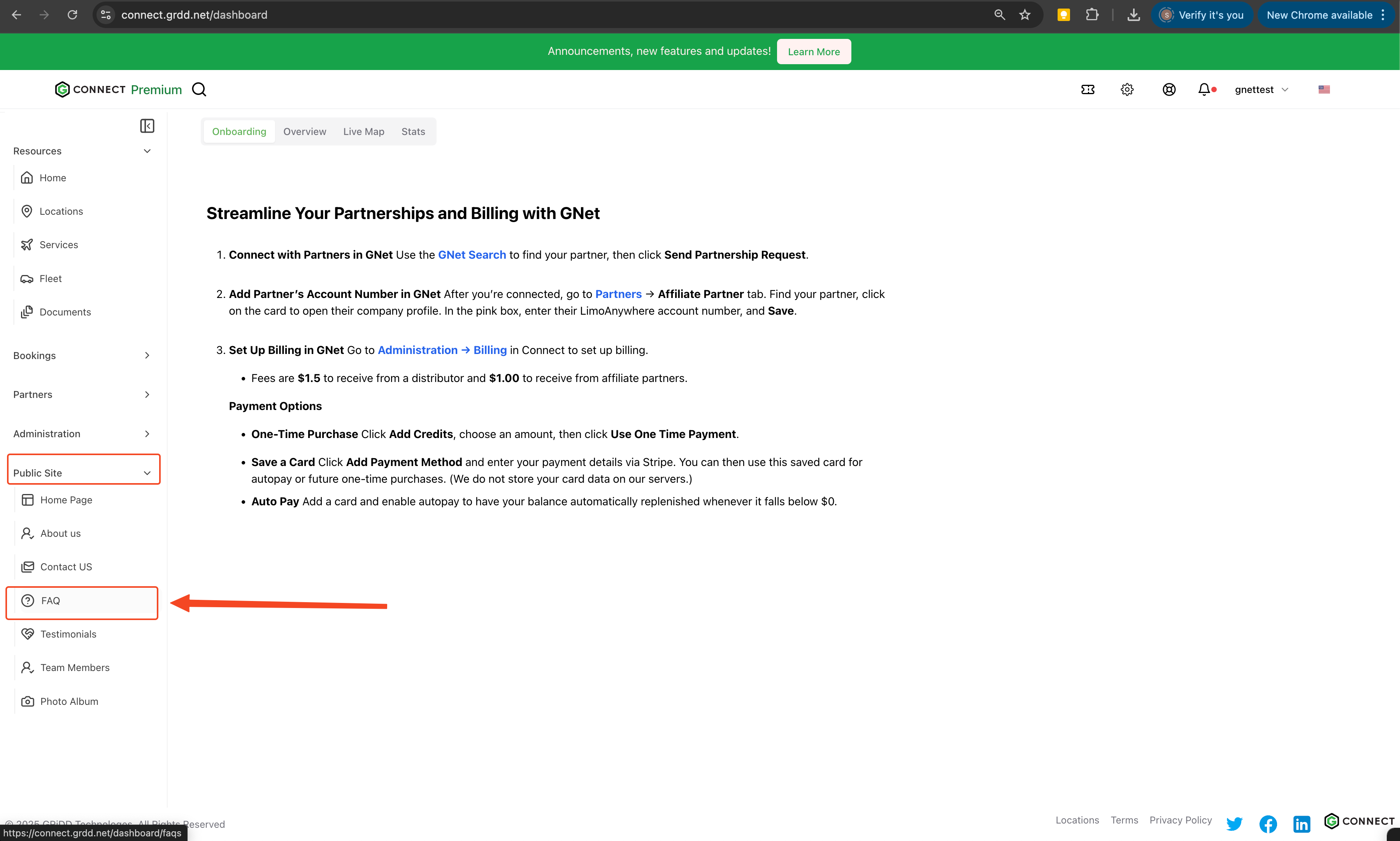
### 1. Access FAQ Settings
Navigate to your public site settings from the left menu, then click on "FAQ" in the navigation menu.
 ### 2. Create FAQ Header
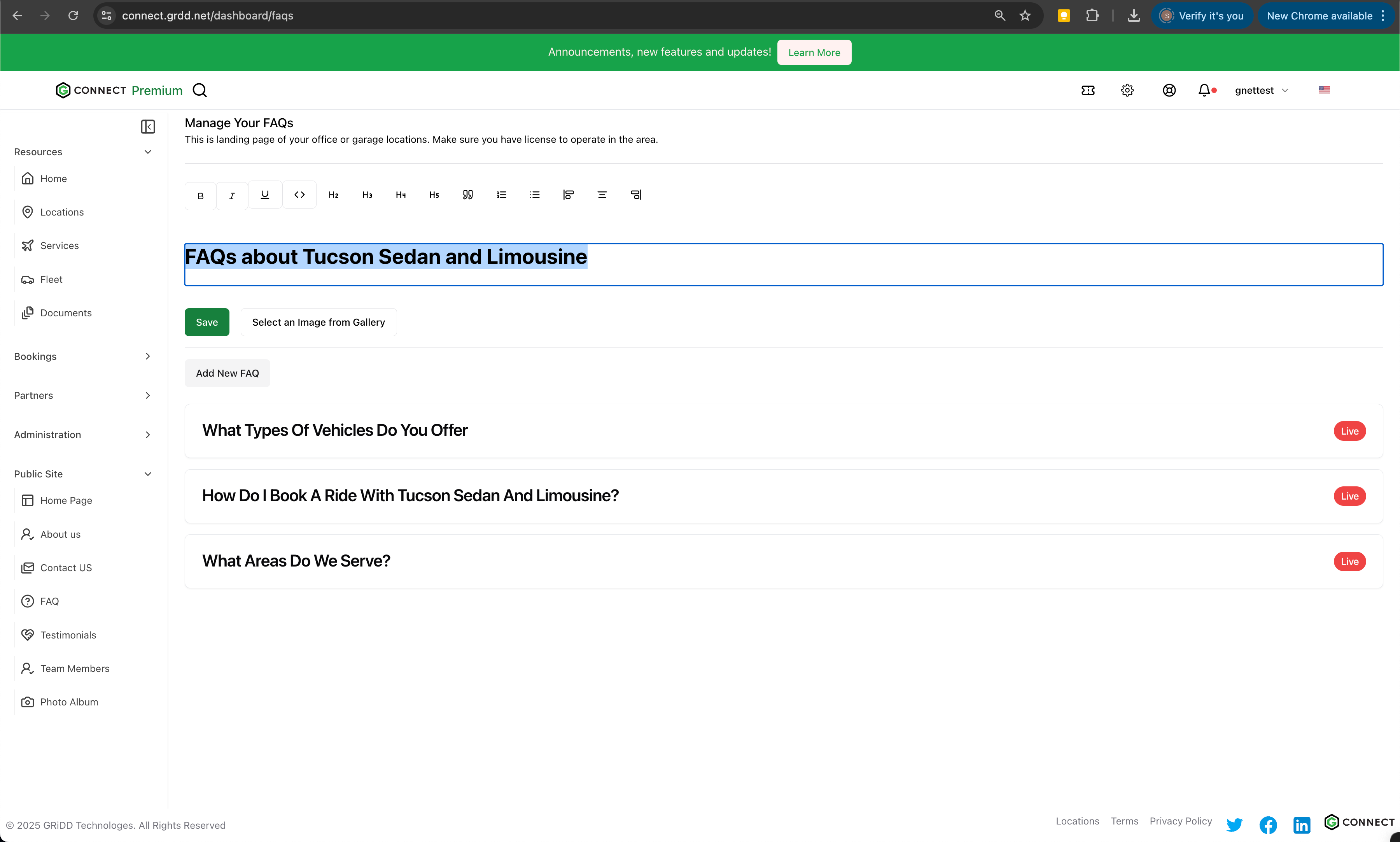
Set up your FAQ section header to introduce the purpose of your FAQ page.
1. Enter a clear, descriptive header
2. Consider adding a brief introduction text
3. Keep the language customer-friendly
### 2. Create FAQ Header
Set up your FAQ section header to introduce the purpose of your FAQ page.
1. Enter a clear, descriptive header
2. Consider adding a brief introduction text
3. Keep the language customer-friendly
 ### 3. Add Header Image
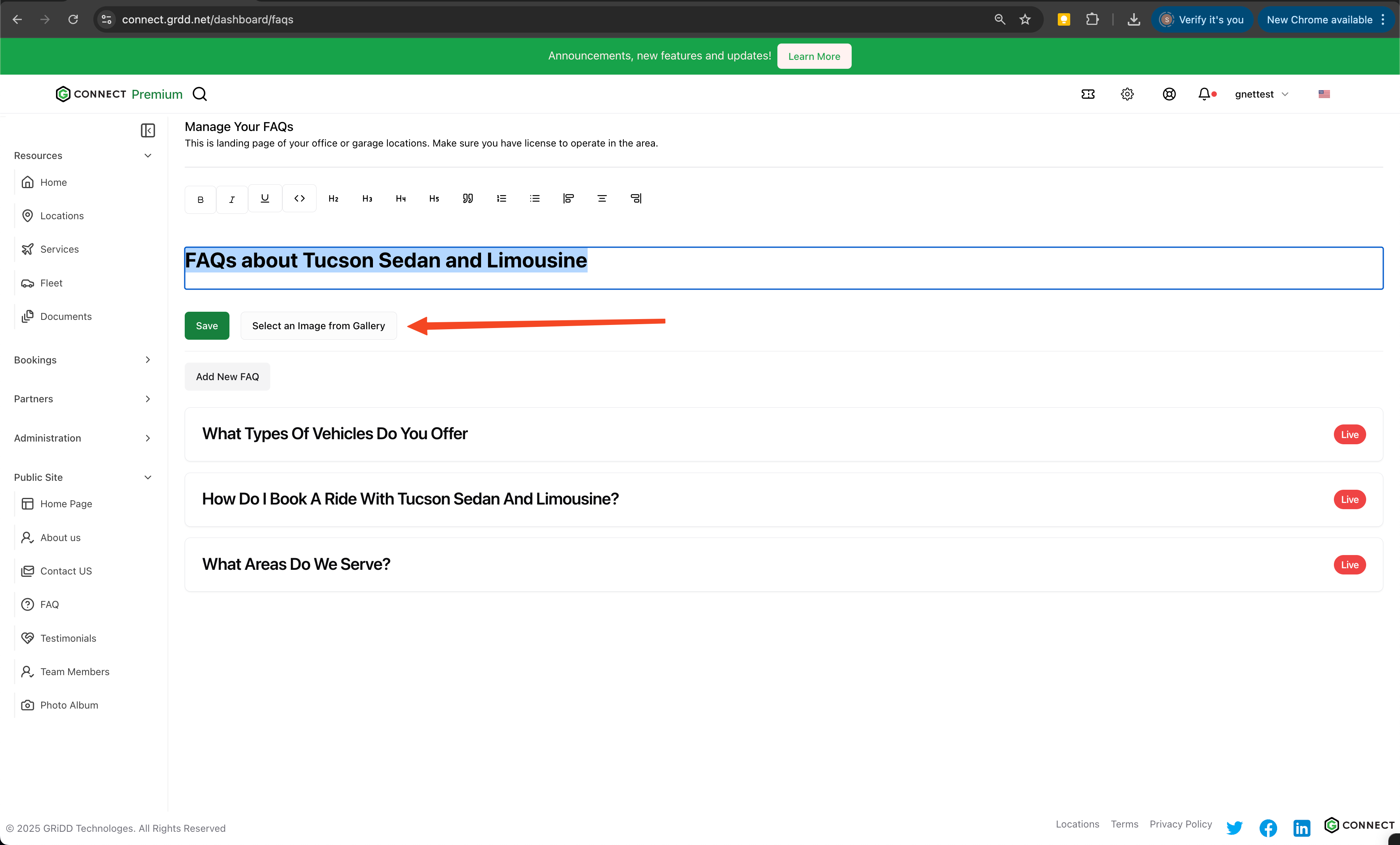
Enhance your FAQ section with a relevant header image:
1. Click the image upload area
2. Select or upload an appropriate image
3. Ensure the image represents your brand professionally
### 3. Add Header Image
Enhance your FAQ section with a relevant header image:
1. Click the image upload area
2. Select or upload an appropriate image
3. Ensure the image represents your brand professionally
 ### 4. Save Header Settings
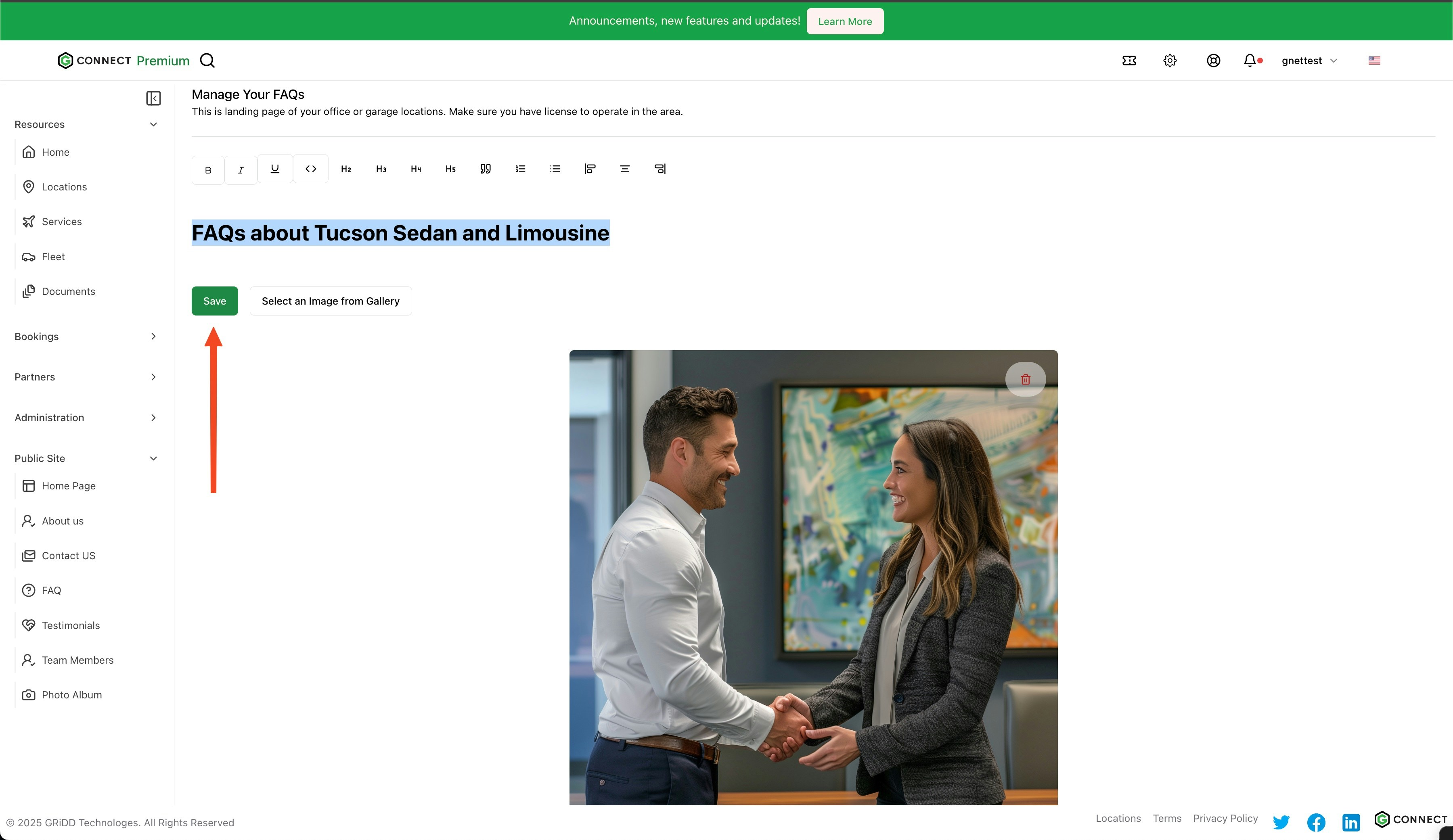
Click on "save" to preserve your header configuration.
### 4. Save Header Settings
Click on "save" to preserve your header configuration.
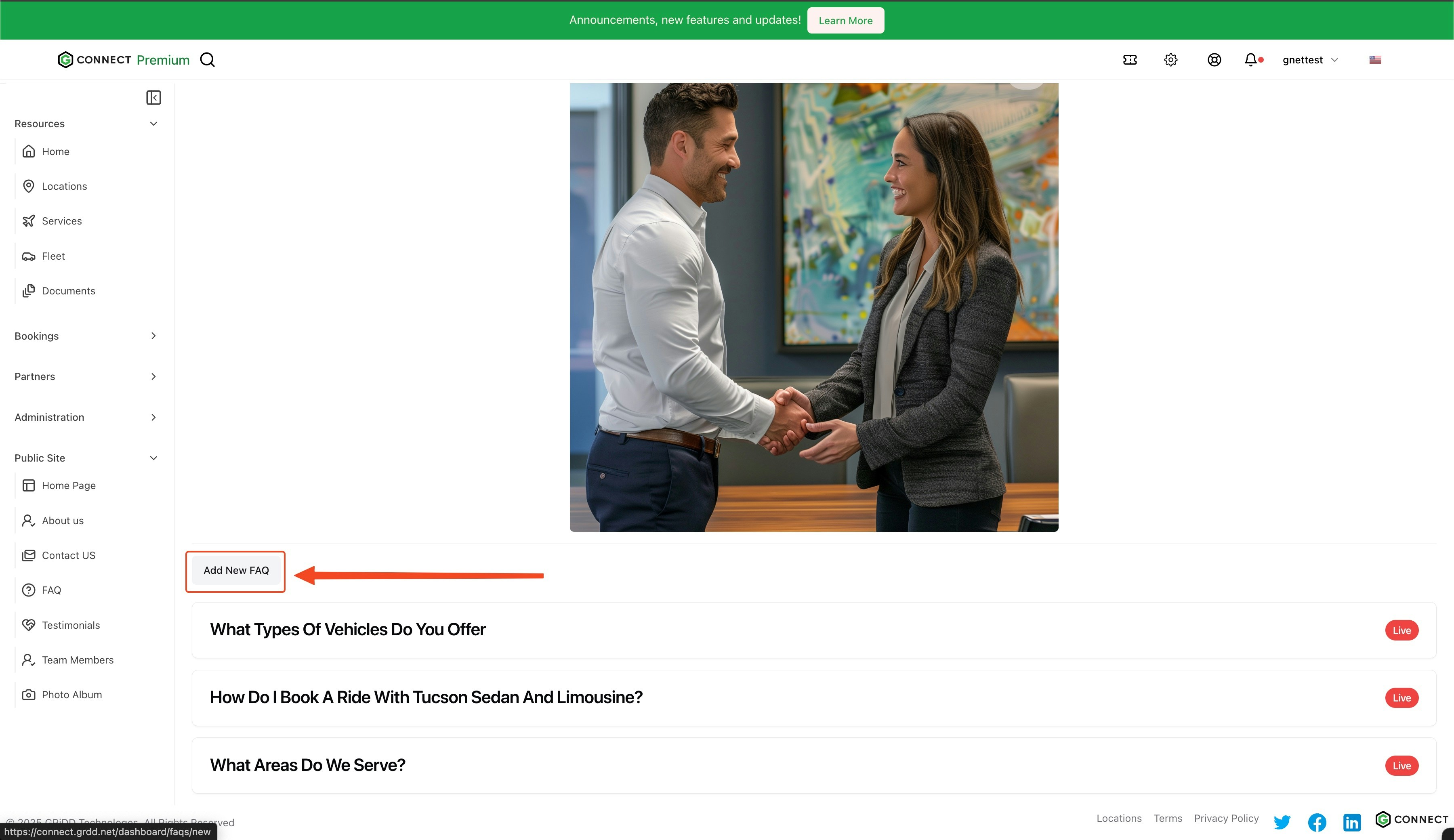
 ### 5. Add FAQ Entries
Click on "add new FAQ" to begin creating your frequently asked questions.
### 5. Add FAQ Entries
Click on "add new FAQ" to begin creating your frequently asked questions.
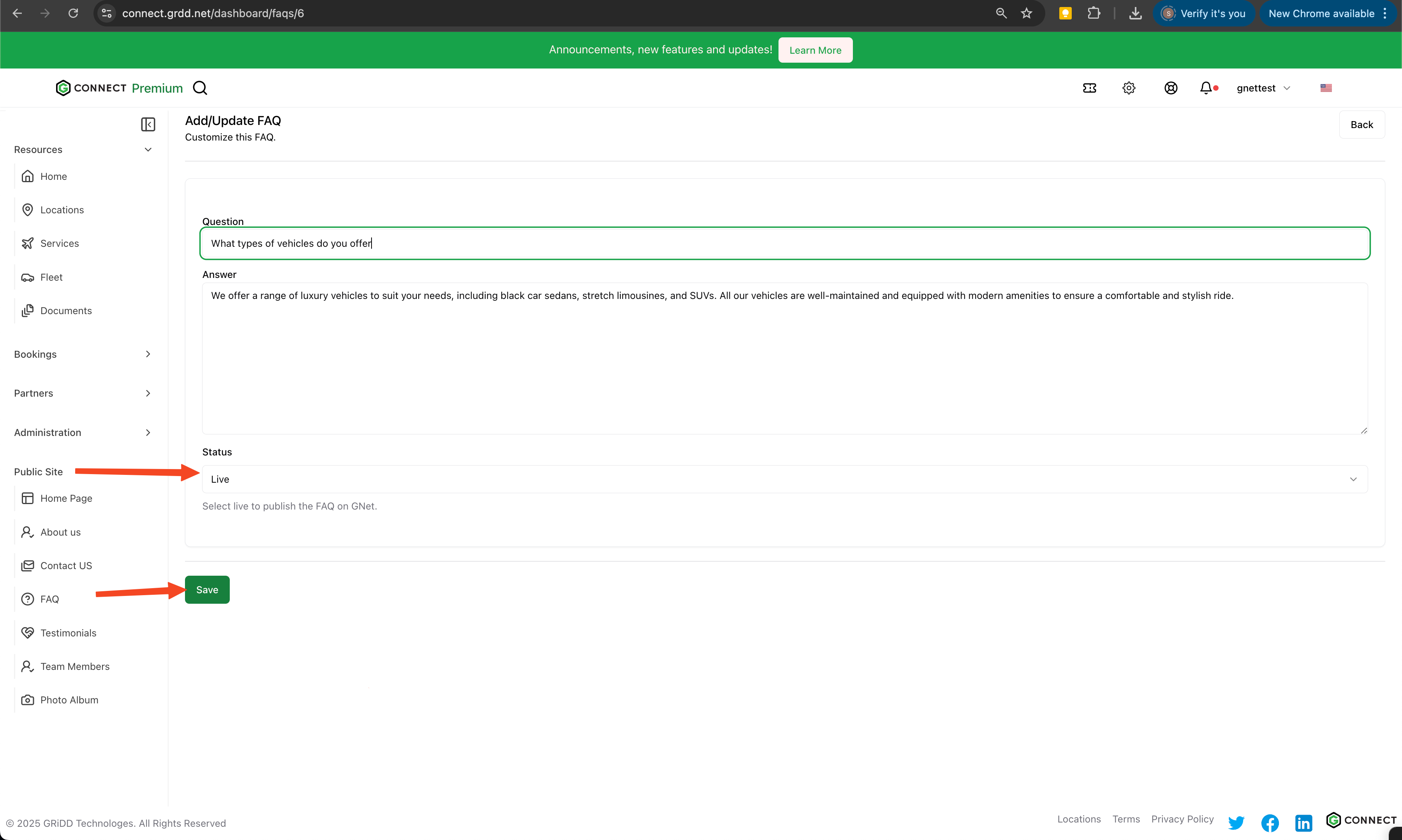
 ### 6. Create FAQ Content
For each FAQ entry:
1. Enter the question clearly and concisely
2. Provide a comprehensive answer
3. Set the status to "live" to make it visible
4. Click "save" to publish
### 6. Create FAQ Content
For each FAQ entry:
1. Enter the question clearly and concisely
2. Provide a comprehensive answer
3. Set the status to "live" to make it visible
4. Click "save" to publish
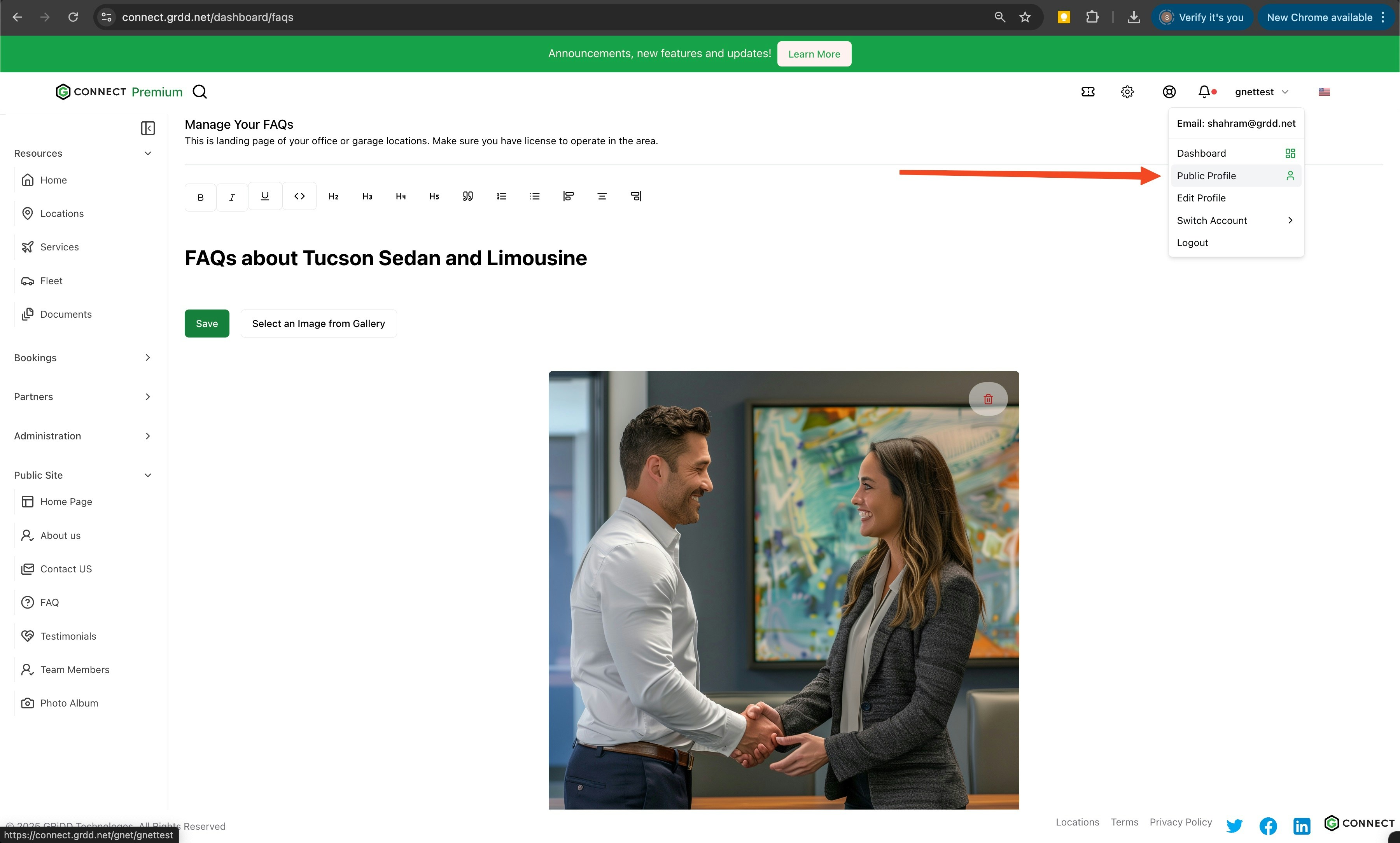
 ### 7. Preview Changes
To review your FAQ page:
1. Click on "public profile"
2. Navigate to the FAQs section from the left menu
3. Review your published content
### 7. Preview Changes
To review your FAQ page:
1. Click on "public profile"
2. Navigate to the FAQs section from the left menu
3. Review your published content
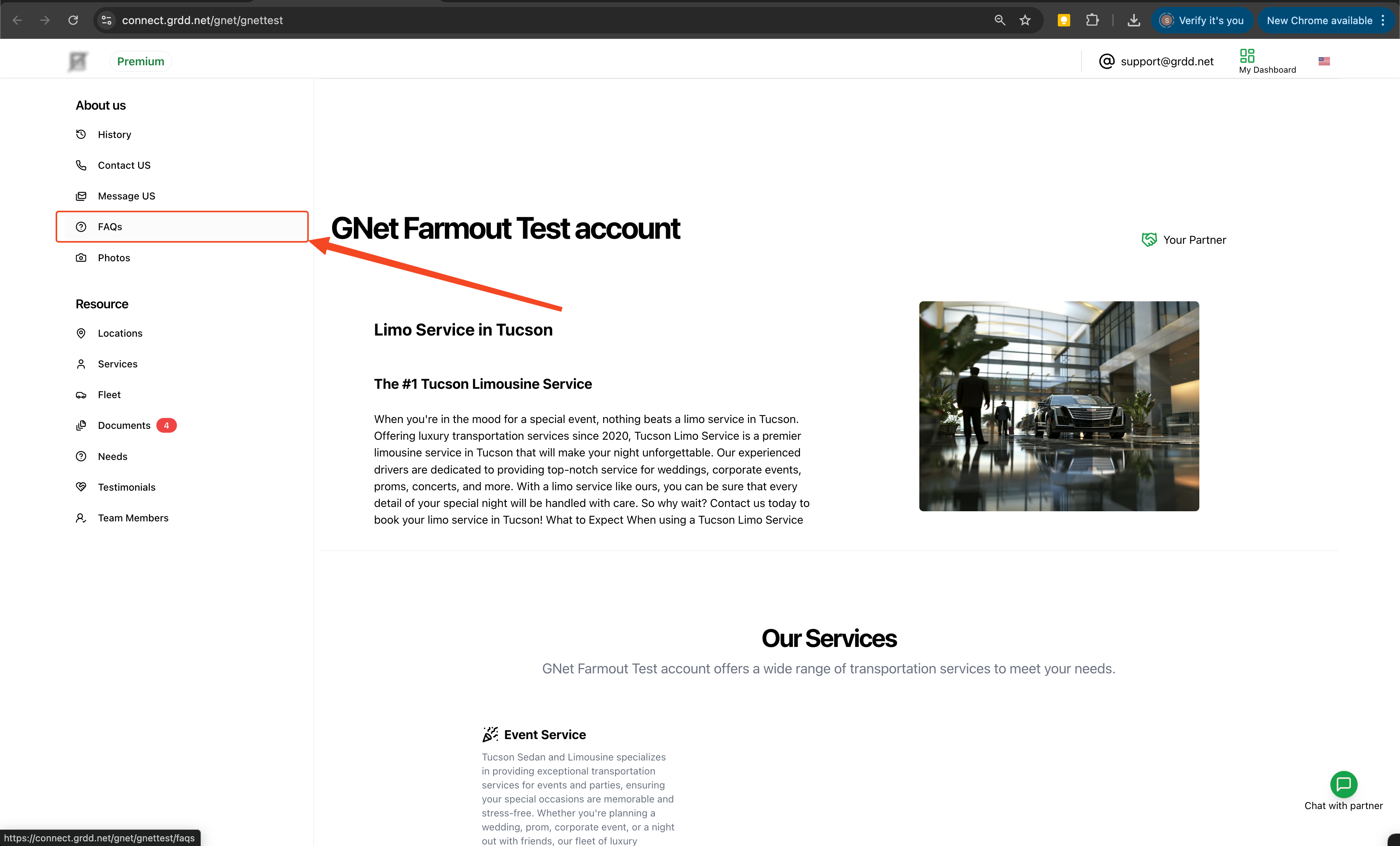
 ### 8. Access FAQ Section
Click on "FAQs" from the left navigation menu of your public profile.
### 8. Access FAQ Section
Click on "FAQs" from the left navigation menu of your public profile.
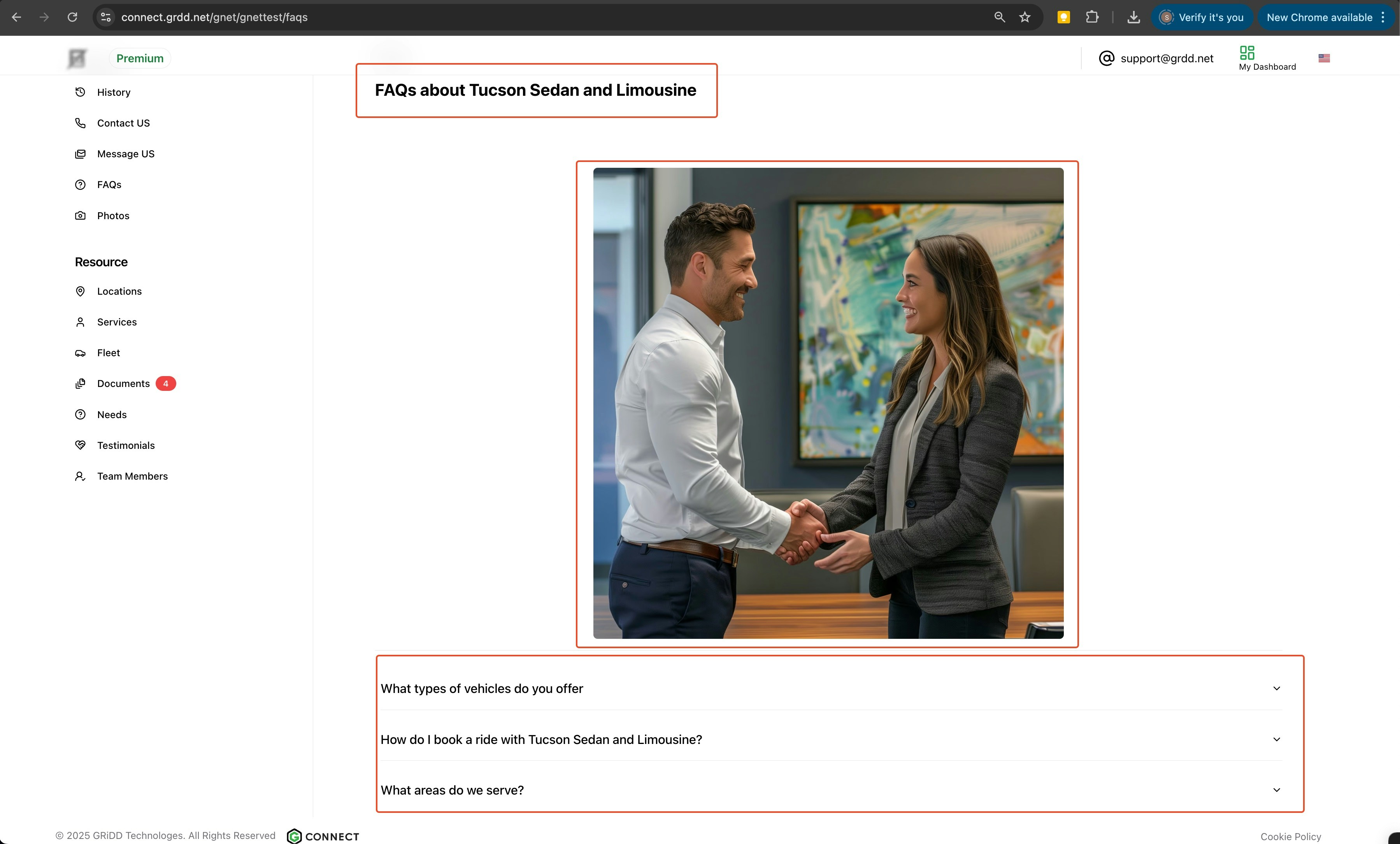
 ### 9. Final Review
Review your FAQ page to ensure all content appears correctly.
### 9. Final Review
Review your FAQ page to ensure all content appears correctly.
 ## Best Practices
### Content Organization
* Group related questions together
* Place most common questions at the top
* Use clear, concise language
* Update regularly based on customer feedback
### Writing Tips
* Write questions from the customer's perspective
* Keep answers brief but comprehensive
* Use simple, straightforward language
* Include relevant links when appropriate
### Maintenance
* Review FAQs quarterly
* Update answers as services change
* Remove outdated information
* Add new questions based on customer inquiries
A well-maintained FAQ page can significantly reduce customer support inquiries while improving customer satisfaction. Consider reviewing your analytics to identify common customer questions that should be added to your FAQ section.
## Best Practices
### Content Organization
* Group related questions together
* Place most common questions at the top
* Use clear, concise language
* Update regularly based on customer feedback
### Writing Tips
* Write questions from the customer's perspective
* Keep answers brief but comprehensive
* Use simple, straightforward language
* Include relevant links when appropriate
### Maintenance
* Review FAQs quarterly
* Update answers as services change
* Remove outdated information
* Add new questions based on customer inquiries
A well-maintained FAQ page can significantly reduce customer support inquiries while improving customer satisfaction. Consider reviewing your analytics to identify common customer questions that should be added to your FAQ section.