> ## Documentation Index
> Fetch the complete documentation index at: https://docs.grdd.dev/llms.txt
> Use this file to discover all available pages before exploring further.
# Contact page
# Managing Your Contact Page
## Overview
Your contact page is crucial for business communication. It provides two key sections: public contact information for general inquiries and private contact details for partners and internal use.
## Step-by-Step Guide
### 1. Accessing Contact Settings
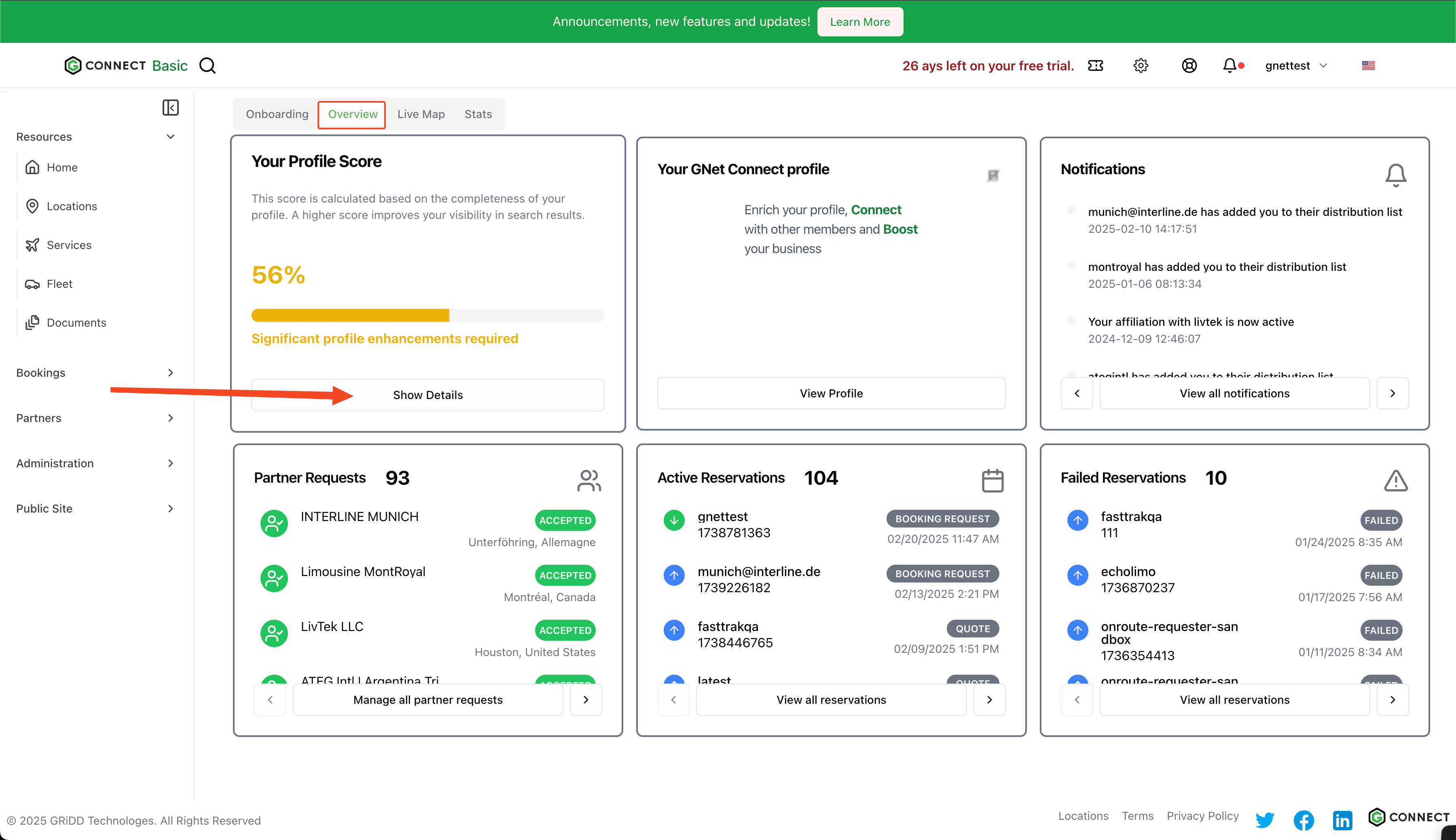
Click on "show details" in the score card to access your profile settings.
 ### 2. Navigate to Contact Page
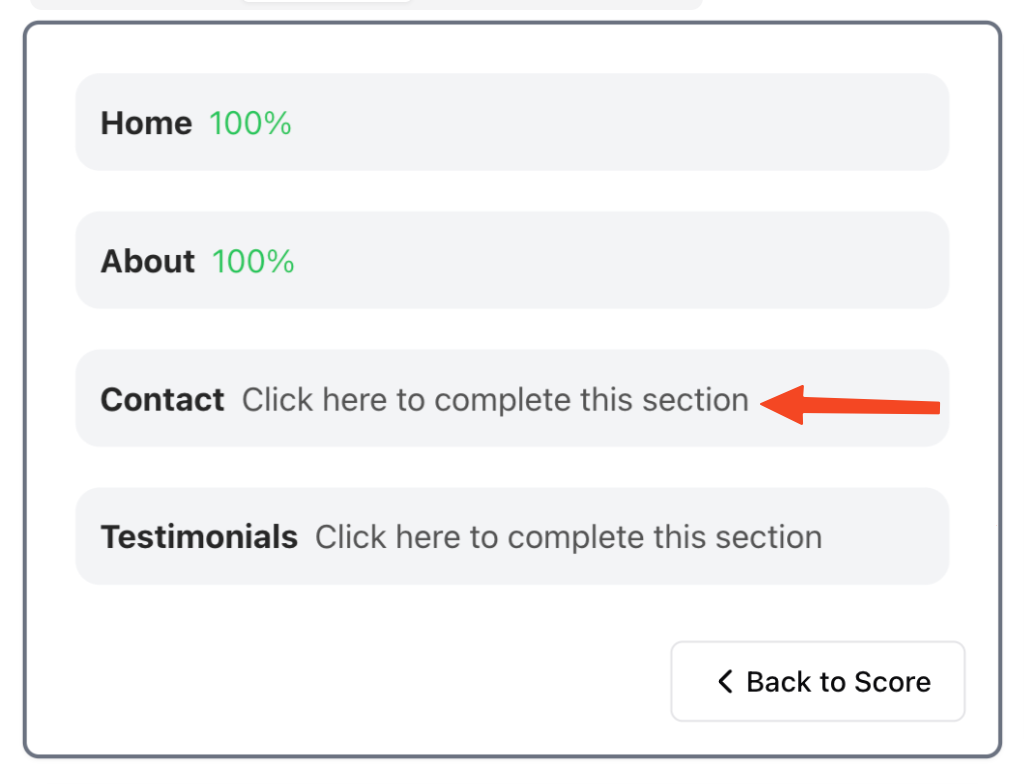
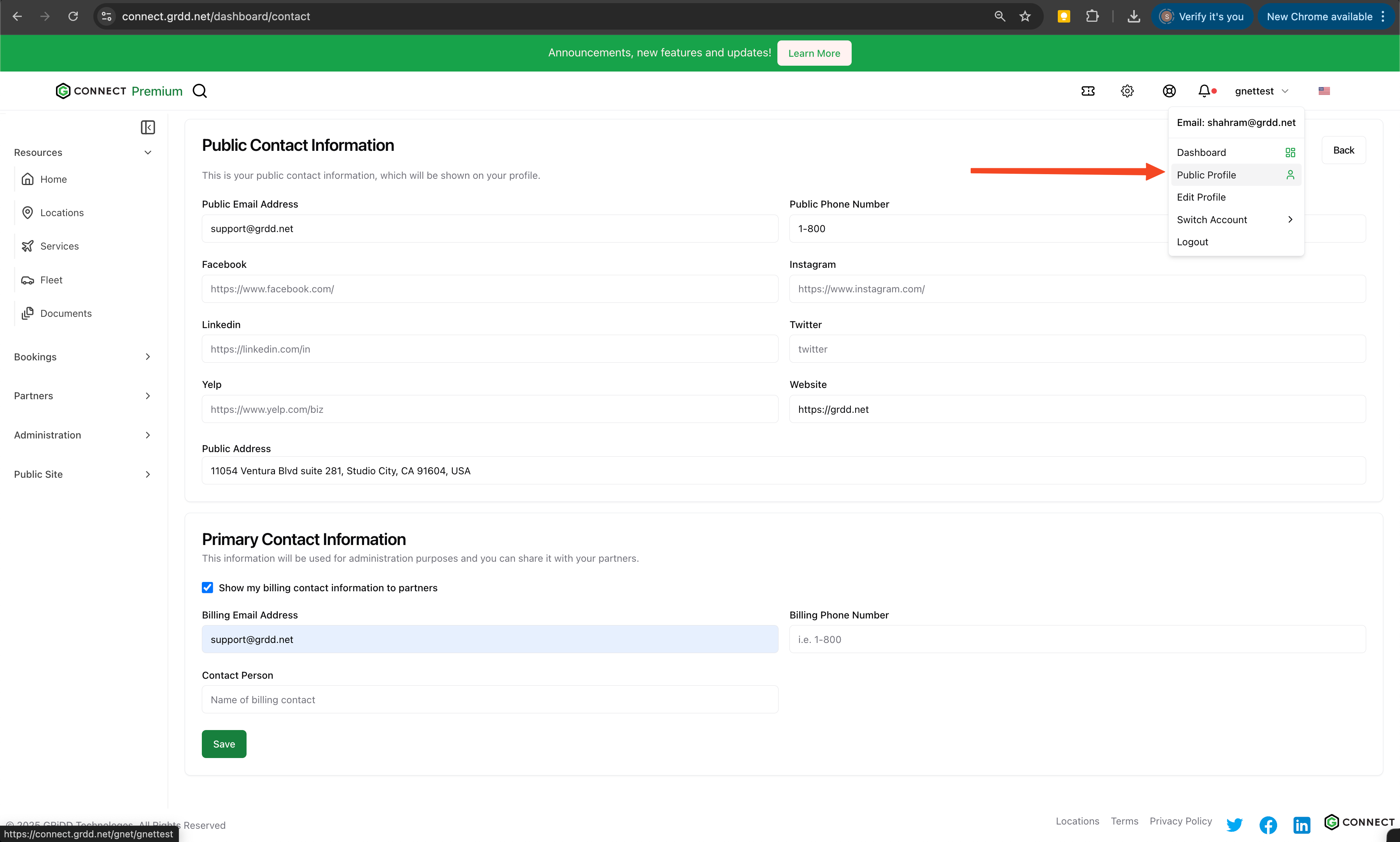
Click on "contact" in the navigation menu to access your contact page settings.
### 2. Navigate to Contact Page
Click on "contact" in the navigation menu to access your contact page settings.
 ### 3. Configure Contact Sections
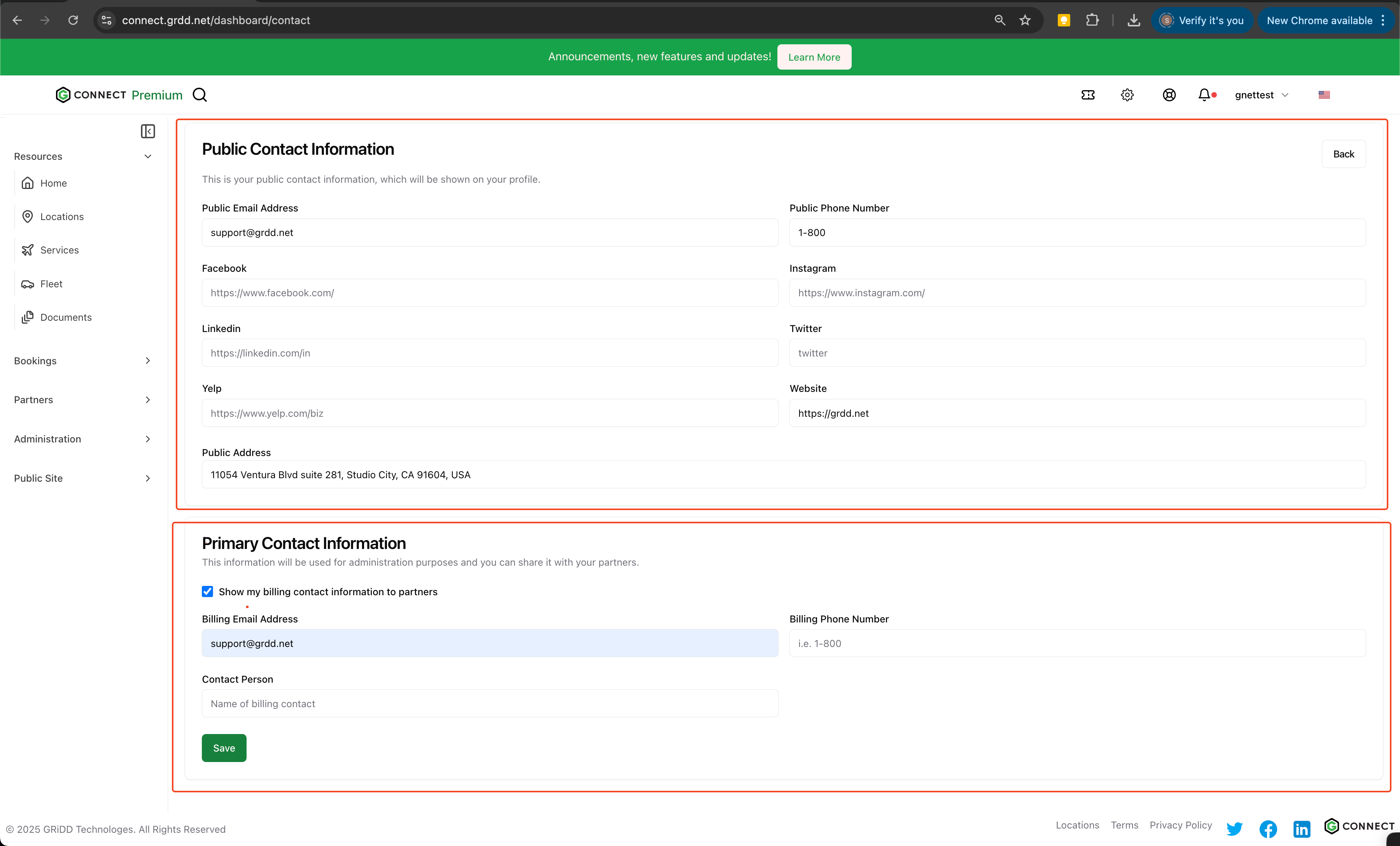
Your contact page consists of two important sections:
#### Public Contact Information
* Visible to everyone on the internet
* Requires a public email address
* Used for general inquiries and customer communication
#### Private Contact Information
* Only visible to internal teams
* Used for billing and internal communication
* Can be selectively shared with partners
### 3. Configure Contact Sections
Your contact page consists of two important sections:
#### Public Contact Information
* Visible to everyone on the internet
* Requires a public email address
* Used for general inquiries and customer communication
#### Private Contact Information
* Only visible to internal teams
* Used for billing and internal communication
* Can be selectively shared with partners
 ### 4. Save Your Changes
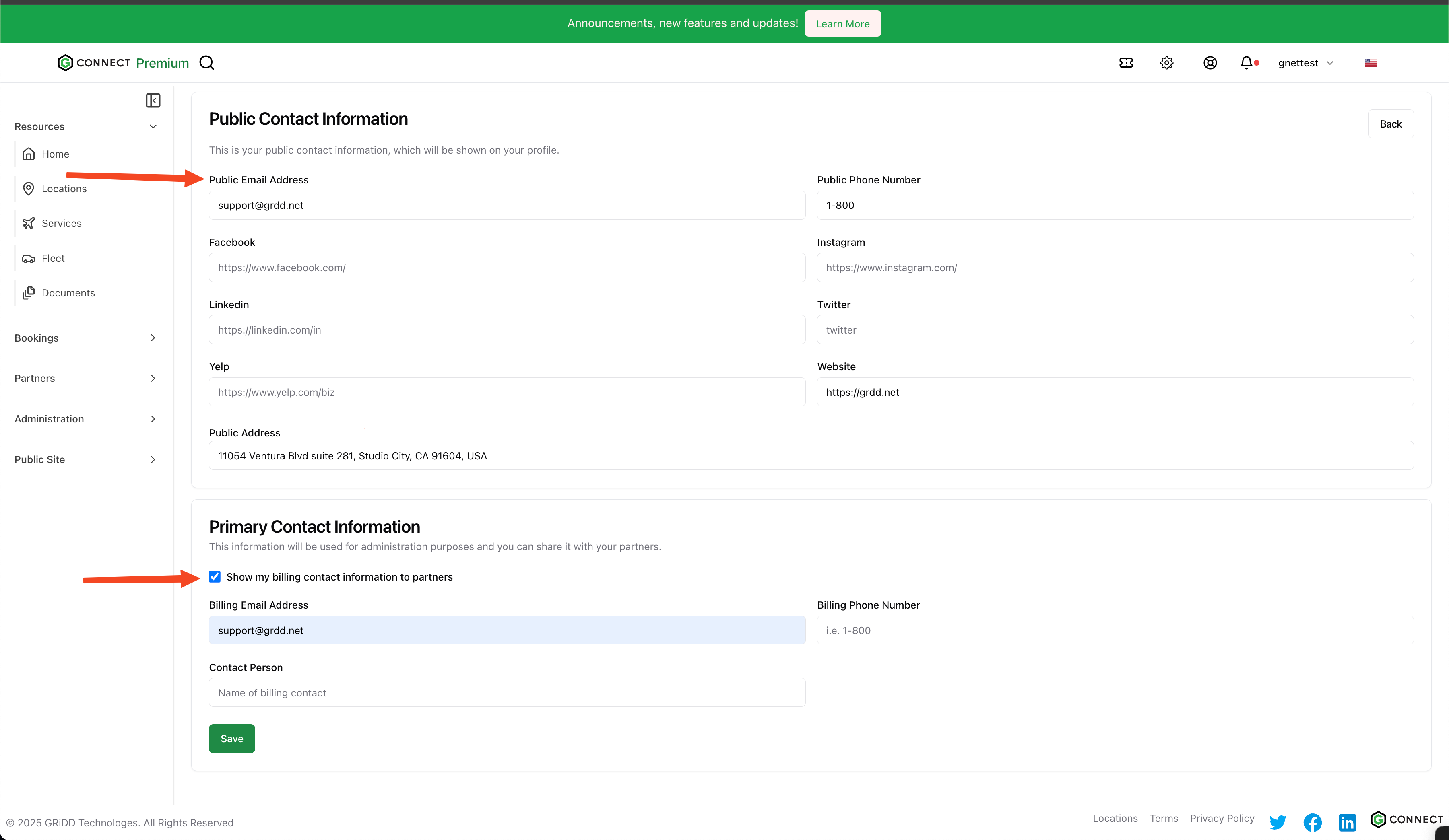
Click "save" to apply your contact information updates.
### 4. Save Your Changes
Click "save" to apply your contact information updates.
 ### 5. Preview Your Page
Click on "public profile" to review how your contact information appears to visitors.
### 5. Preview Your Page
Click on "public profile" to review how your contact information appears to visitors.
 ## Visibility Settings
### Partner View
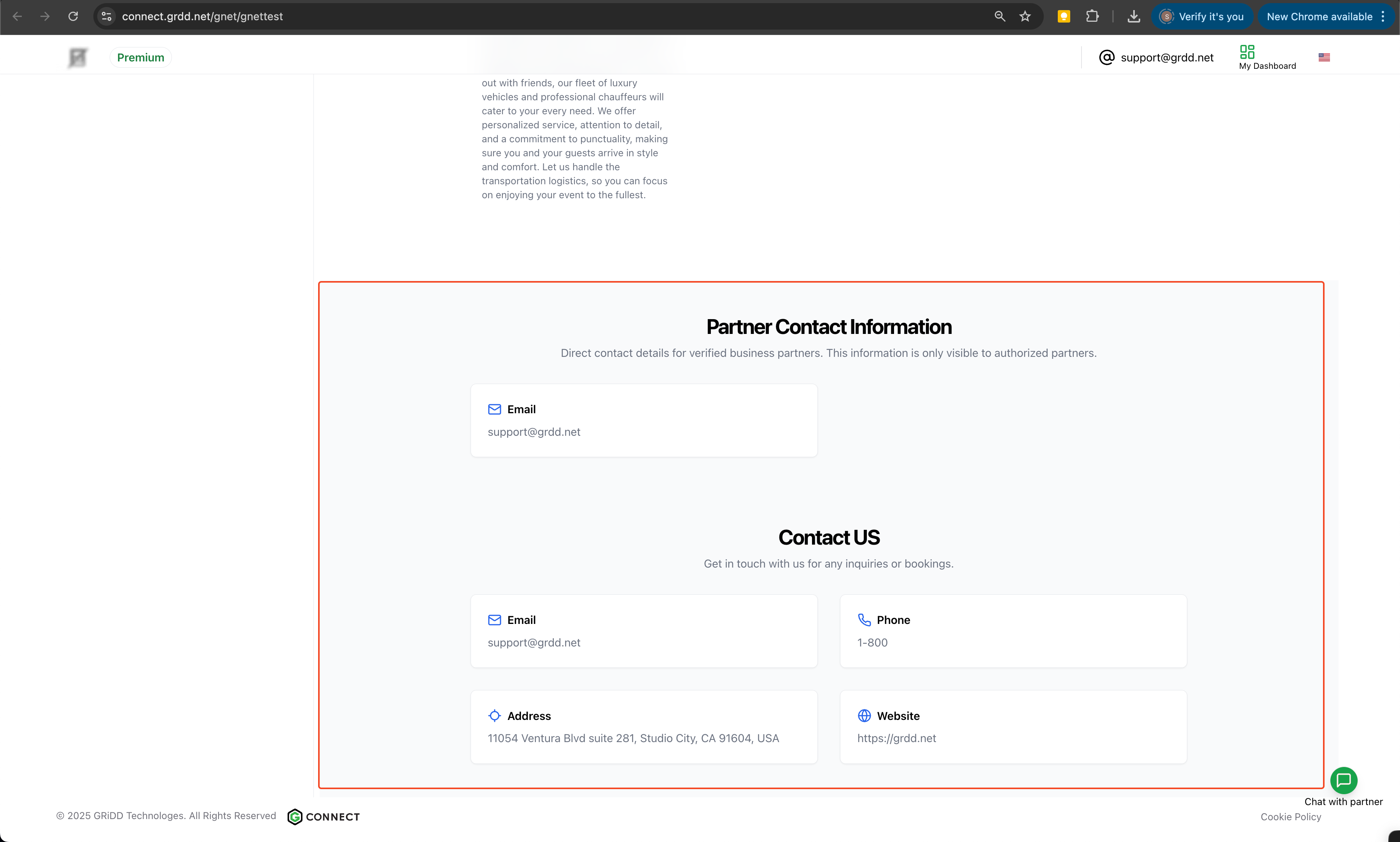
When you enable partner visibility, authorized partners will see:
* Primary contact information
* Additional details you've chosen to share
## Visibility Settings
### Partner View
When you enable partner visibility, authorized partners will see:
* Primary contact information
* Additional details you've chosen to share
 ### Public View
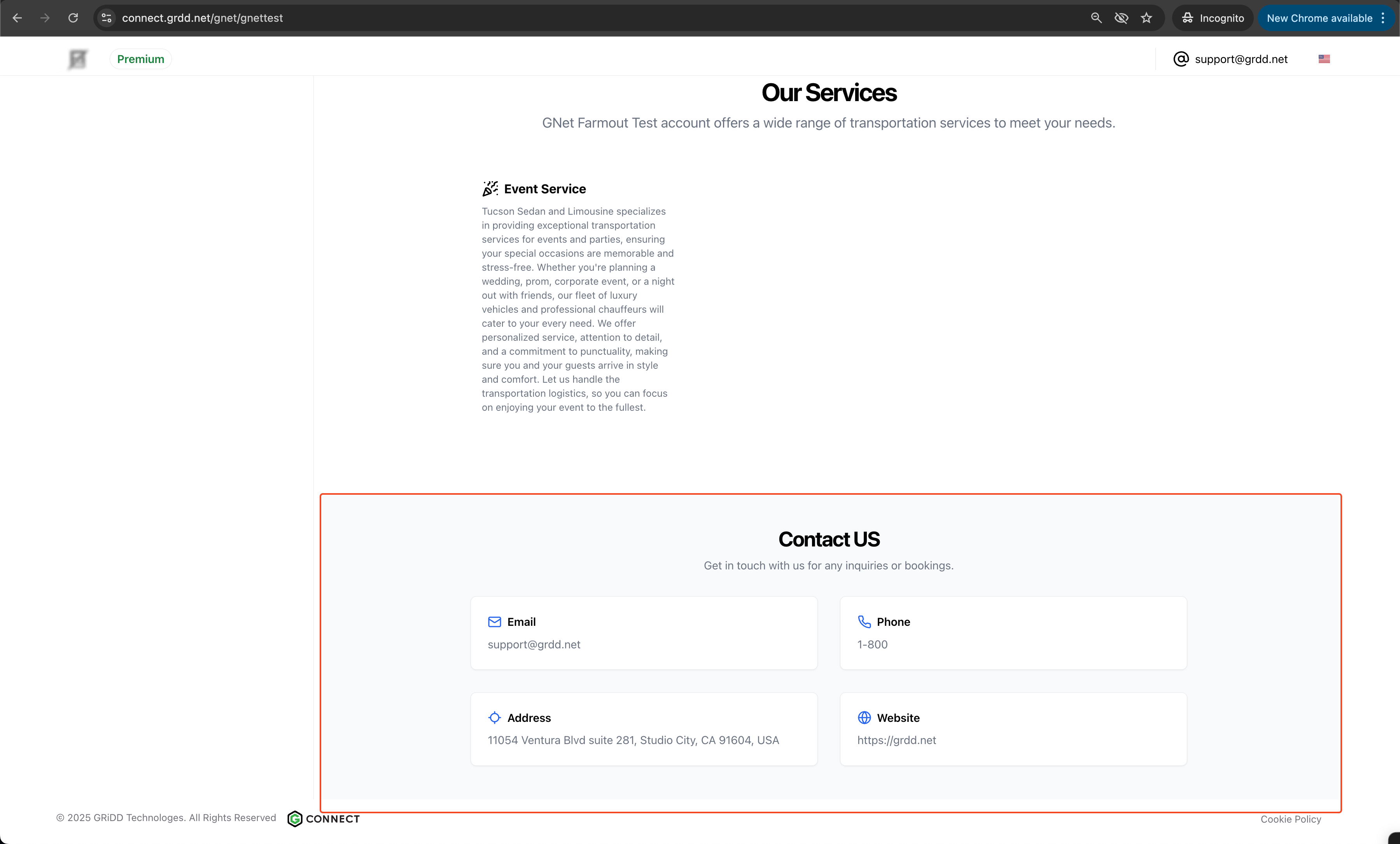
Non-partners will only see:
* Public contact information
* General inquiry details
### Public View
Non-partners will only see:
* Public contact information
* General inquiry details
 ## Best Practices
* Keep contact information current and accurate
* Regularly verify email addresses and phone numbers
* Use business contact information rather than personal
* Consider adding office hours or response time expectations
* Include preferred contact methods
* Clearly separate public and private information
Review your contact information monthly to ensure all details remain accurate. This helps maintain professional communication channels with both customers and partners.
## Best Practices
* Keep contact information current and accurate
* Regularly verify email addresses and phone numbers
* Use business contact information rather than personal
* Consider adding office hours or response time expectations
* Include preferred contact methods
* Clearly separate public and private information
Review your contact information monthly to ensure all details remain accurate. This helps maintain professional communication channels with both customers and partners.