> ## Documentation Index
> Fetch the complete documentation index at: https://docs.grdd.dev/llms.txt
> Use this file to discover all available pages before exploring further.
# About page
# Managing Your About Page
## Overview
Your about page tells your company's story and builds trust with potential customers. This guide walks you through creating an engaging and professional about page.
## Step-by-Step Guide
### 1. Accessing Your About Page Settings
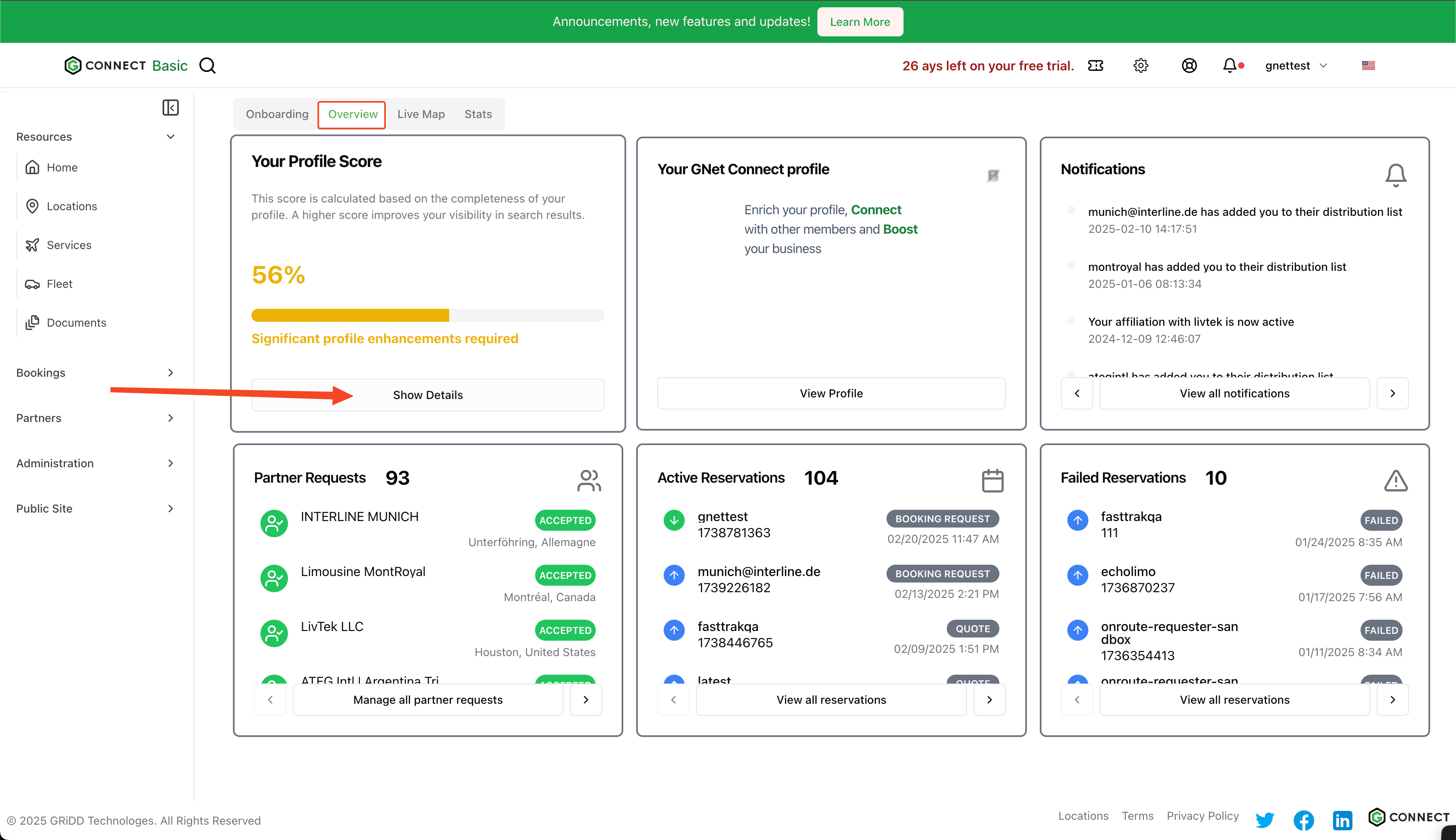
Click on "show details" in the score card to access your profile settings.
 ### 2. Navigate to About Page
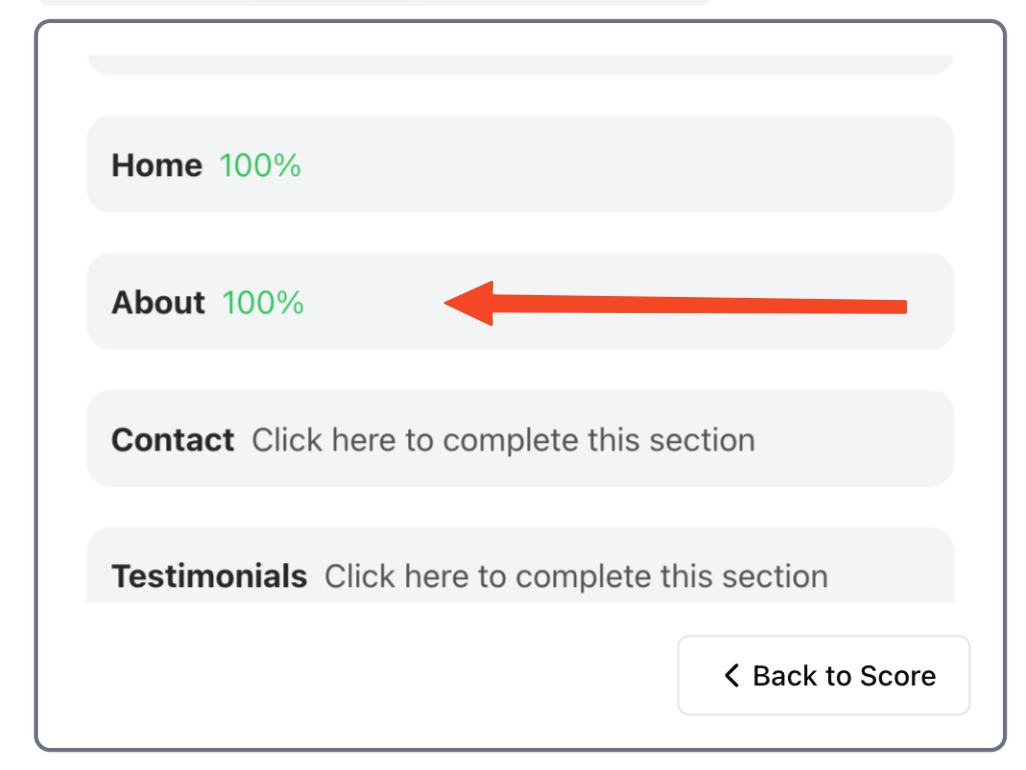
Click on "about" in the navigation menu to access your about page settings.
### 2. Navigate to About Page
Click on "about" in the navigation menu to access your about page settings.
 ### 3. Customize Your Content
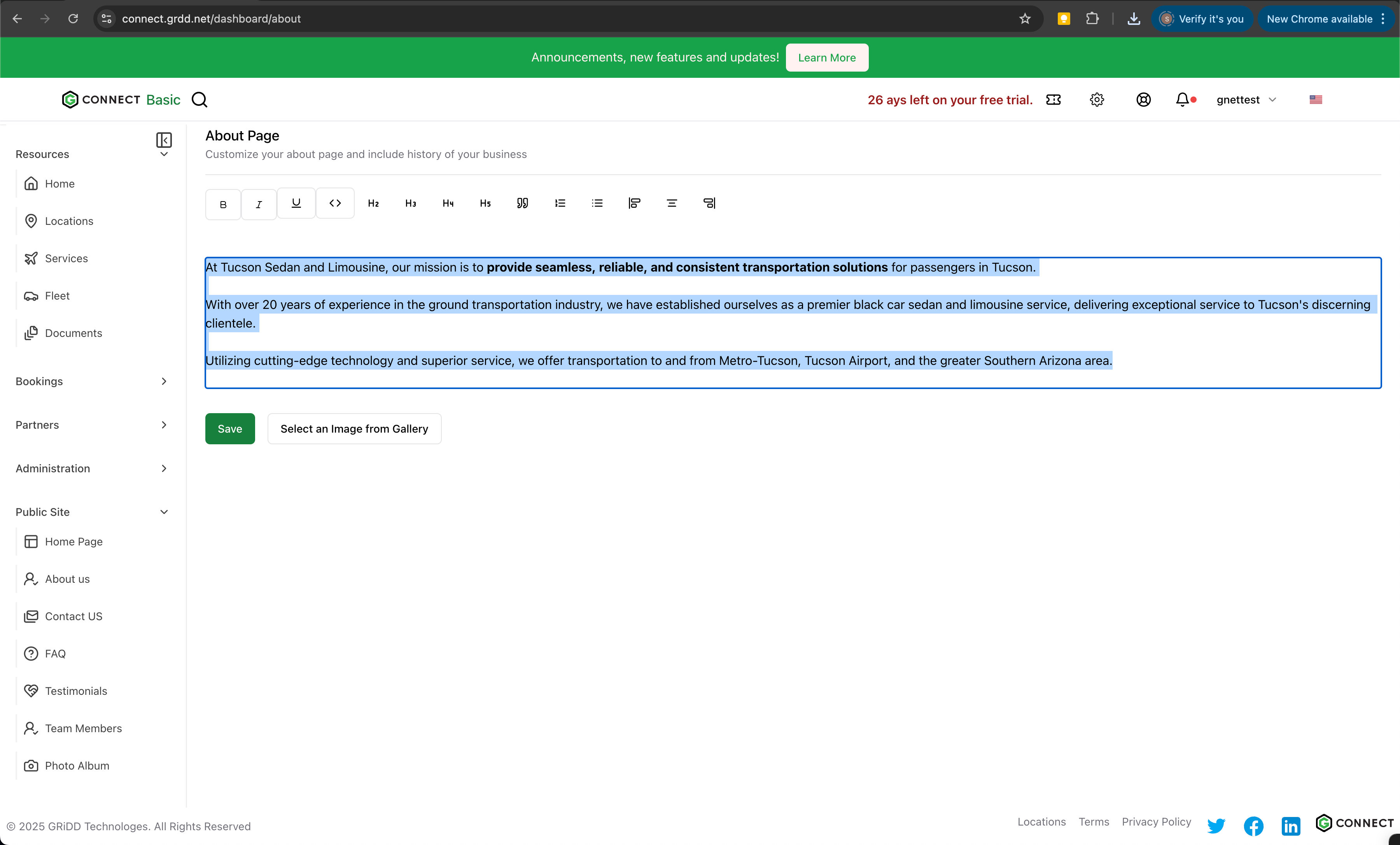
Add your company history, values, mission statement, and team information. This content helps visitors understand your business better.
### 3. Customize Your Content
Add your company history, values, mission statement, and team information. This content helps visitors understand your business better.
 ### 4. Add Visual Content
Enhance your page with professional images:
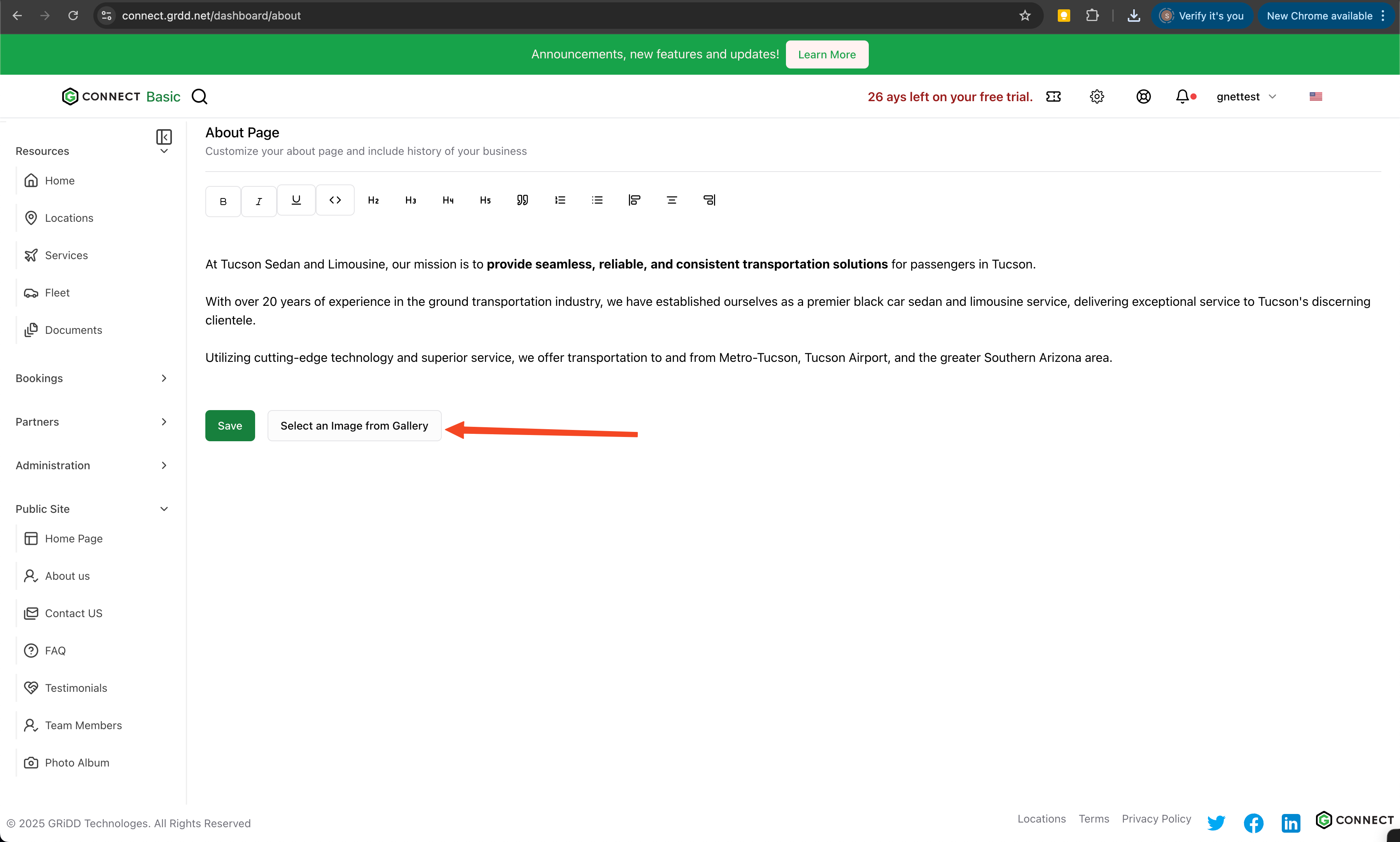
1. Click "Select an Image from Gallery" to add photos
2. Choose images that represent your company culture and services
### 4. Add Visual Content
Enhance your page with professional images:
1. Click "Select an Image from Gallery" to add photos
2. Choose images that represent your company culture and services
 ### 5. Image Management
You have two options for adding images:
* Upload new images from your device
* Select from your previous uploads
### 5. Image Management
You have two options for adding images:
* Upload new images from your device
* Select from your previous uploads
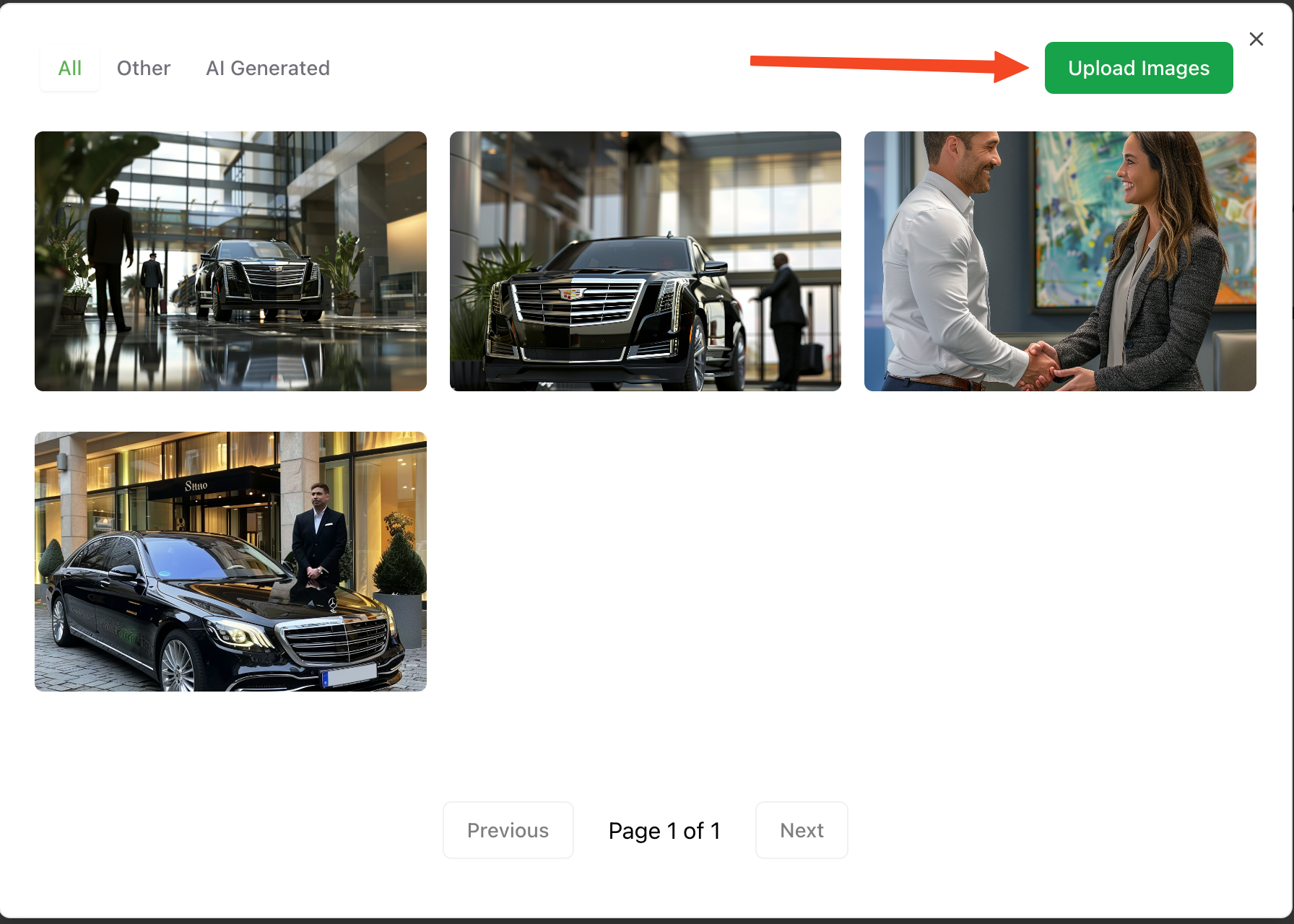 ### 6. Upload Process
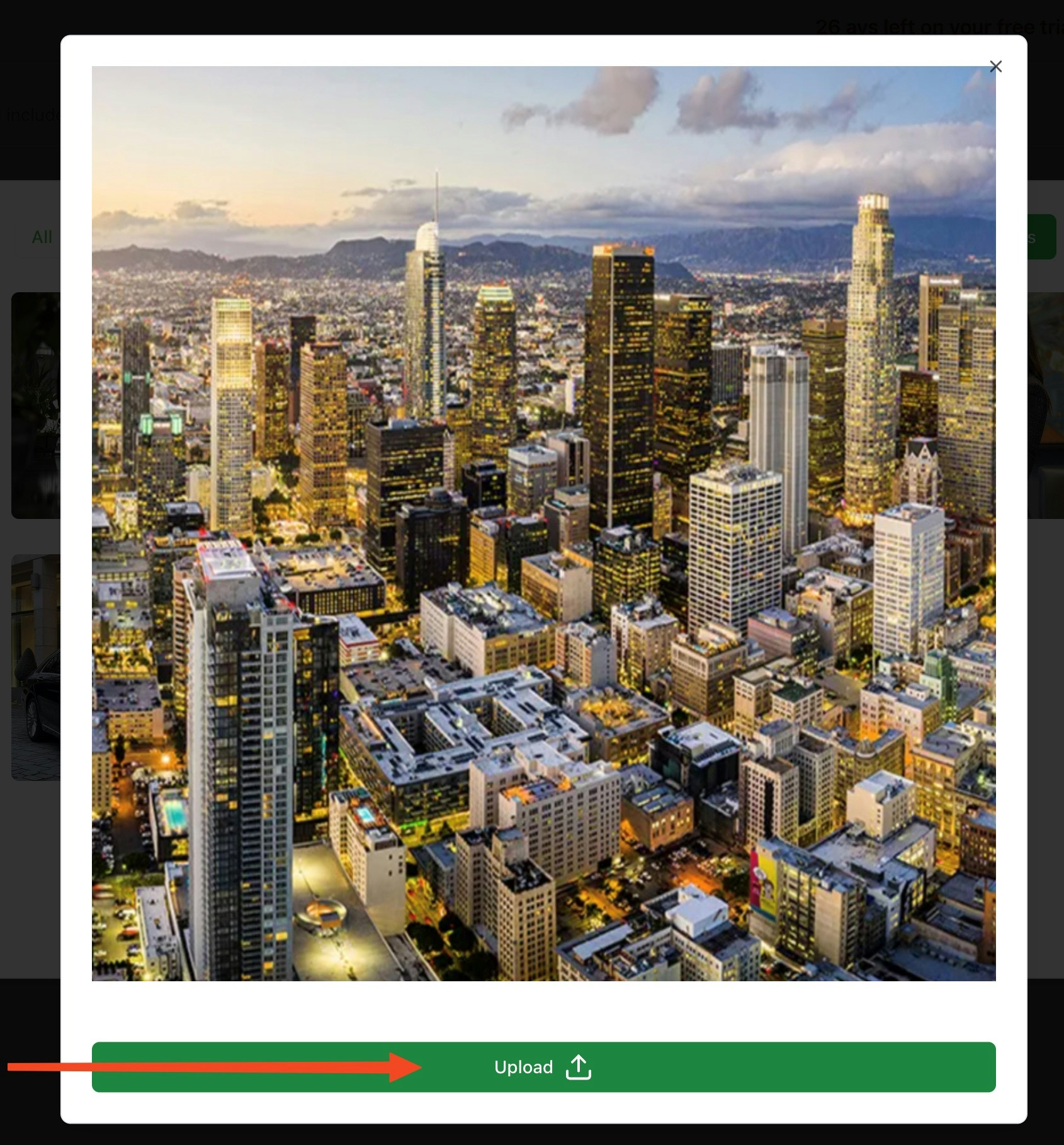
After selecting your image, click "upload" to add it to your page.
### 6. Upload Process
After selecting your image, click "upload" to add it to your page.
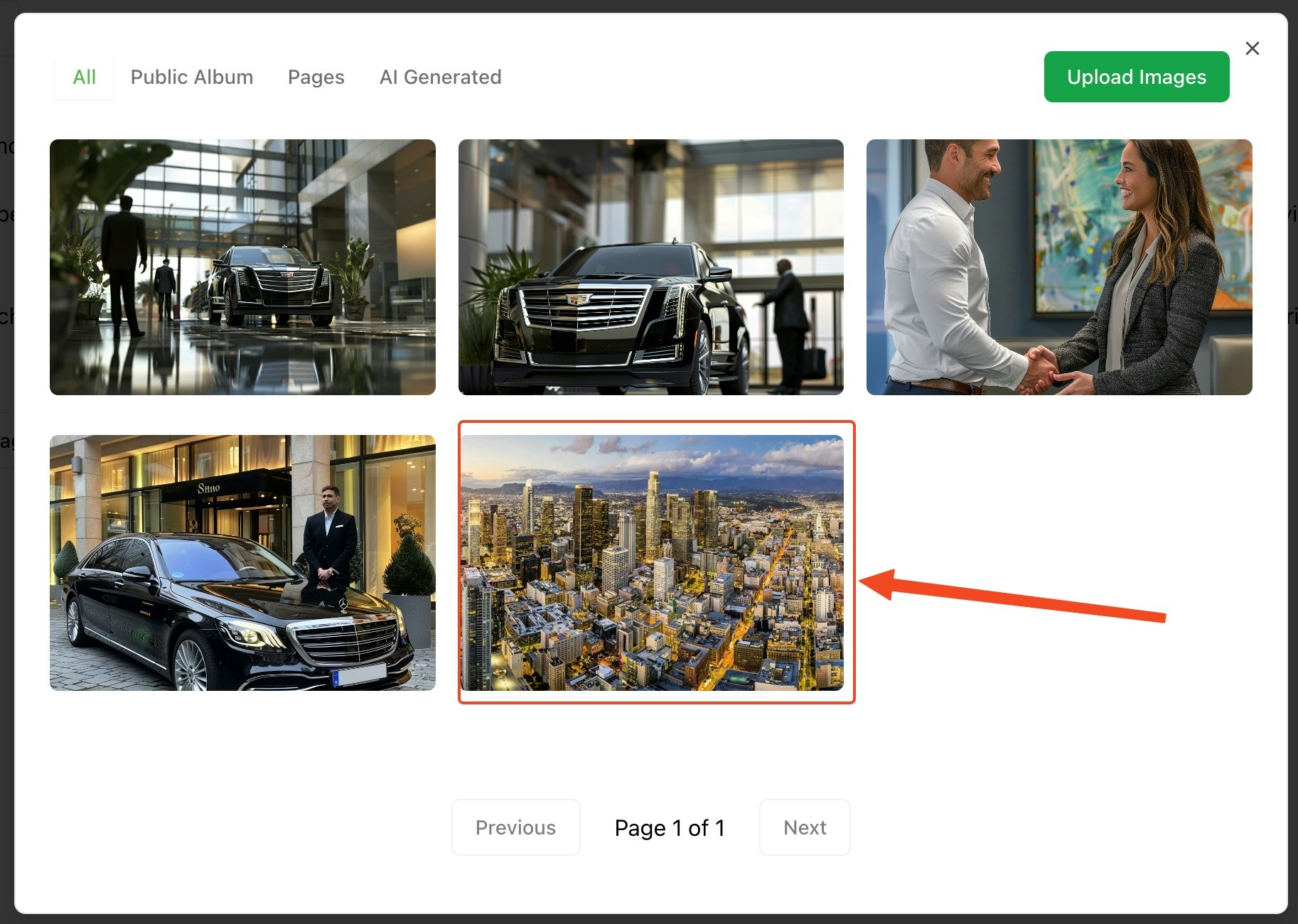
 ### 7. Image Selection
Click on your uploaded image to select it for placement on your about page.
### 7. Image Selection
Click on your uploaded image to select it for placement on your about page.
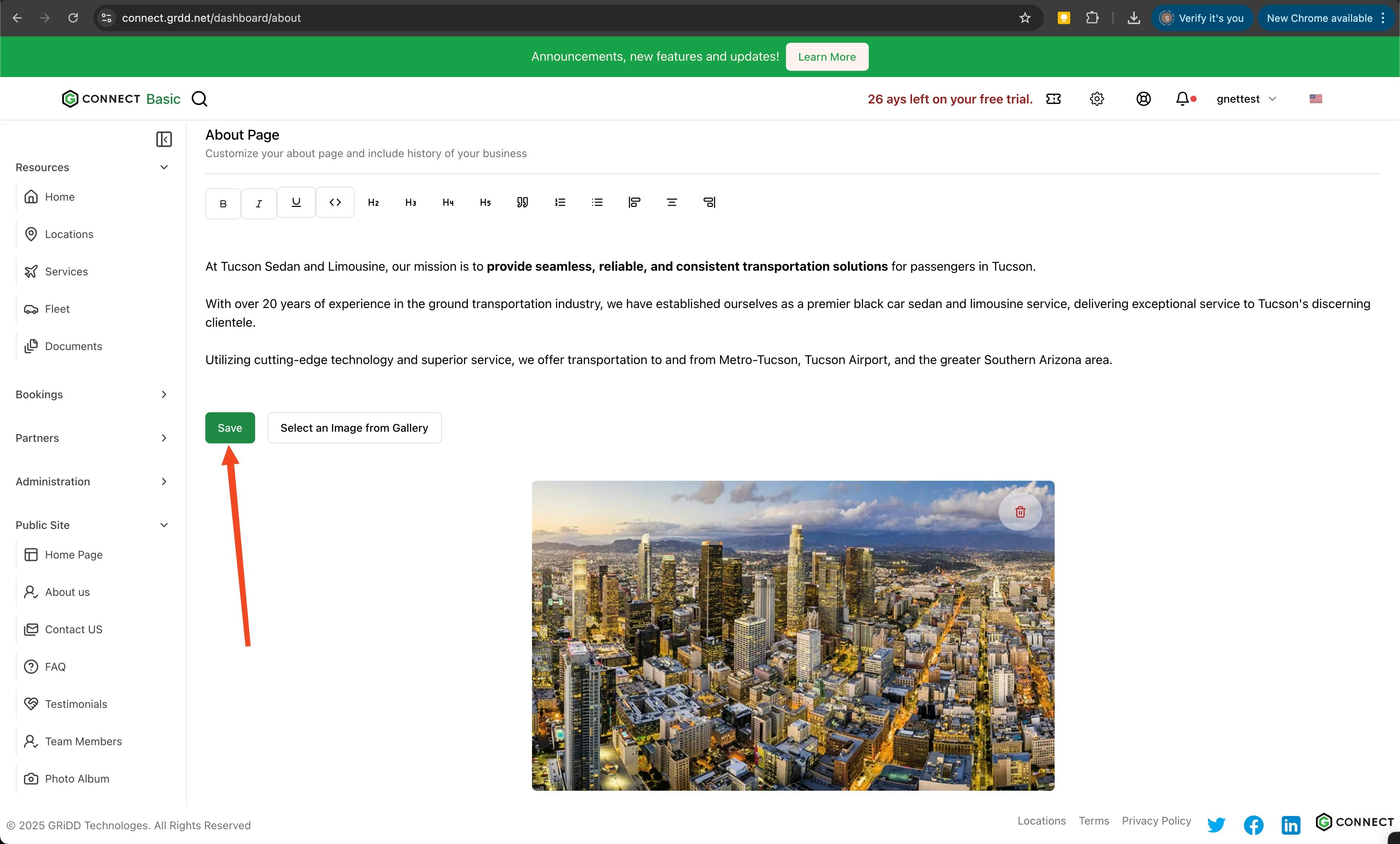
 ### 8. Save Your Changes
Click "save" to apply your updates.
### 8. Save Your Changes
Click "save" to apply your updates.
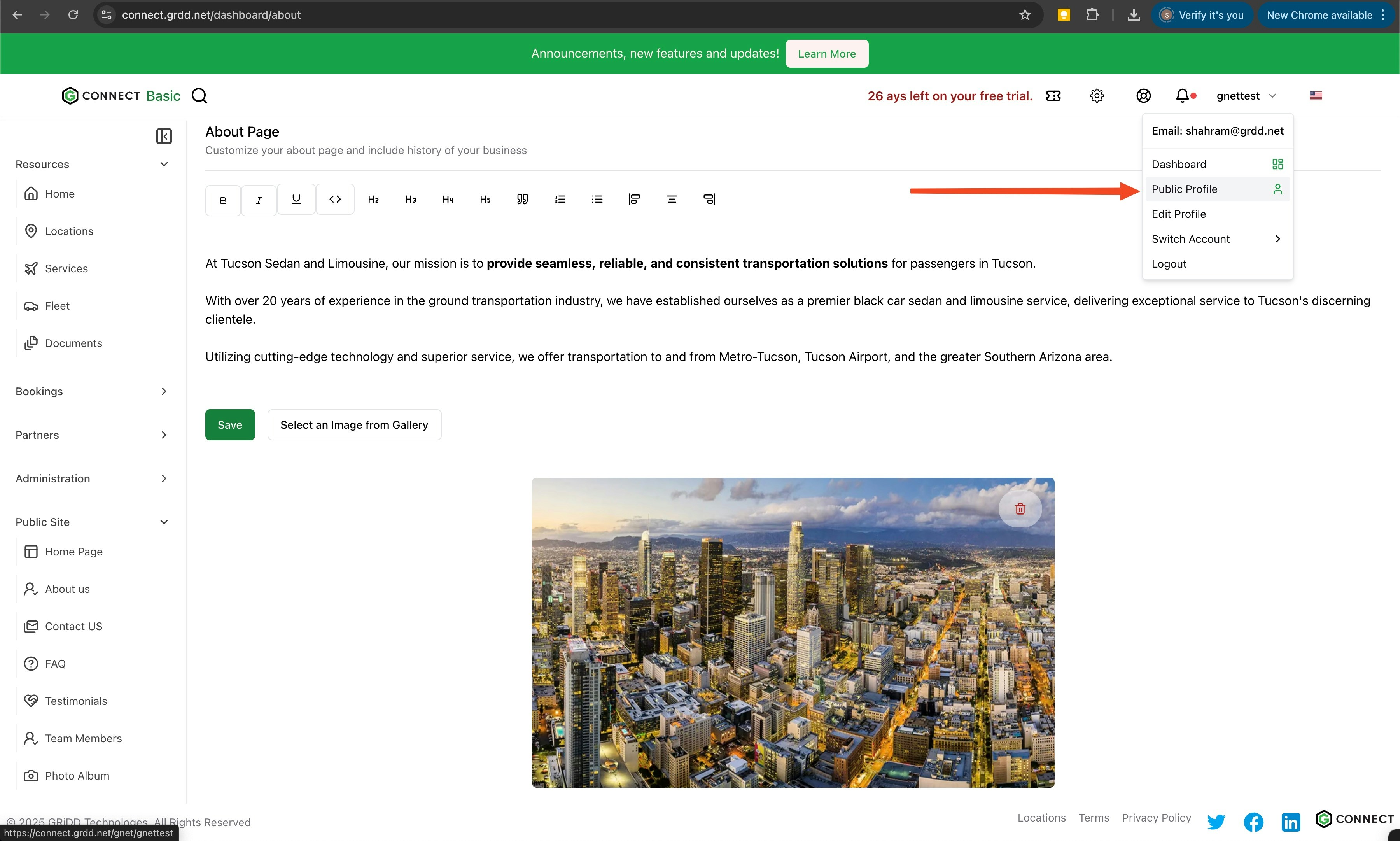
 ### 9. Preview Your Page
Click on "public profile" to view your changes.
### 9. Preview Your Page
Click on "public profile" to view your changes.
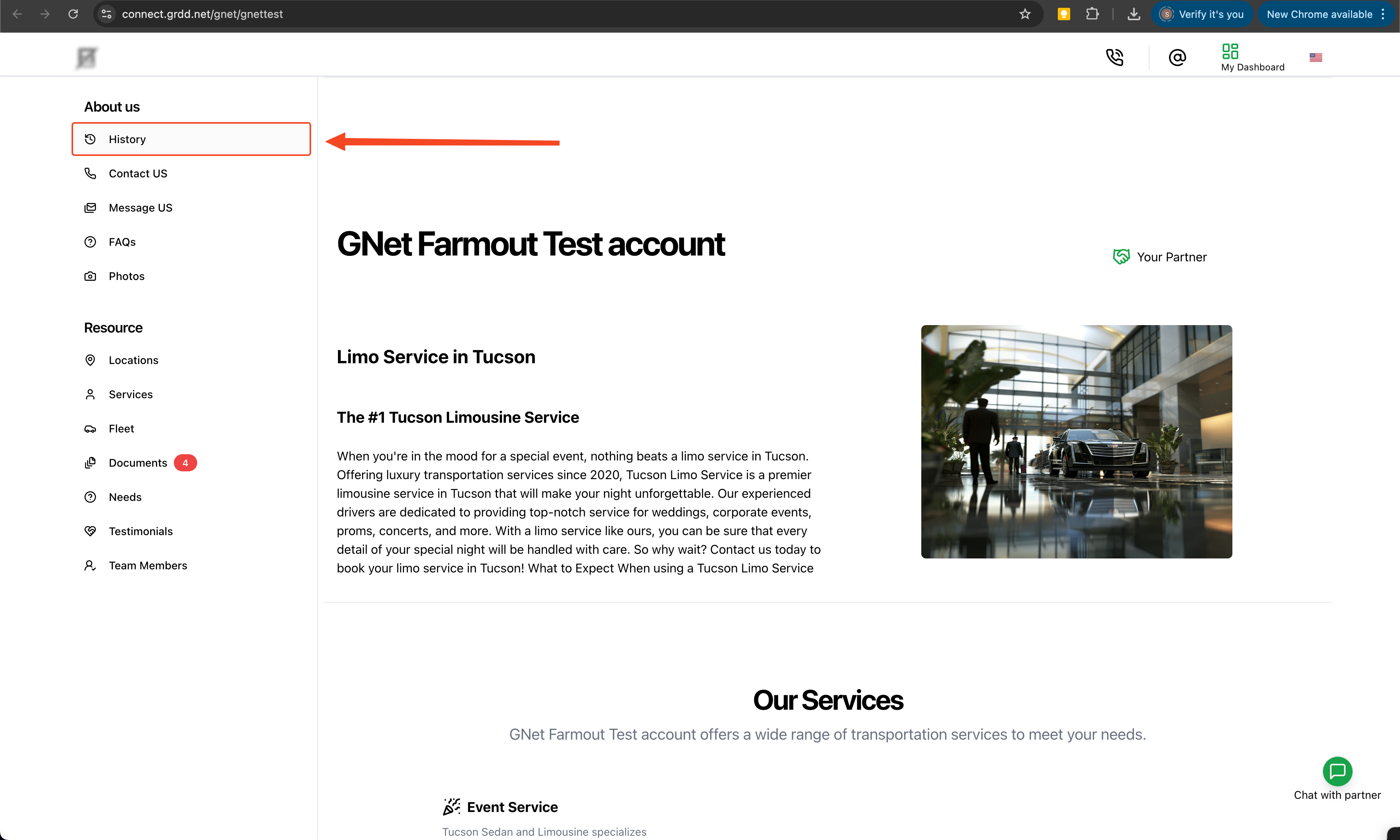
 ### 10. View History
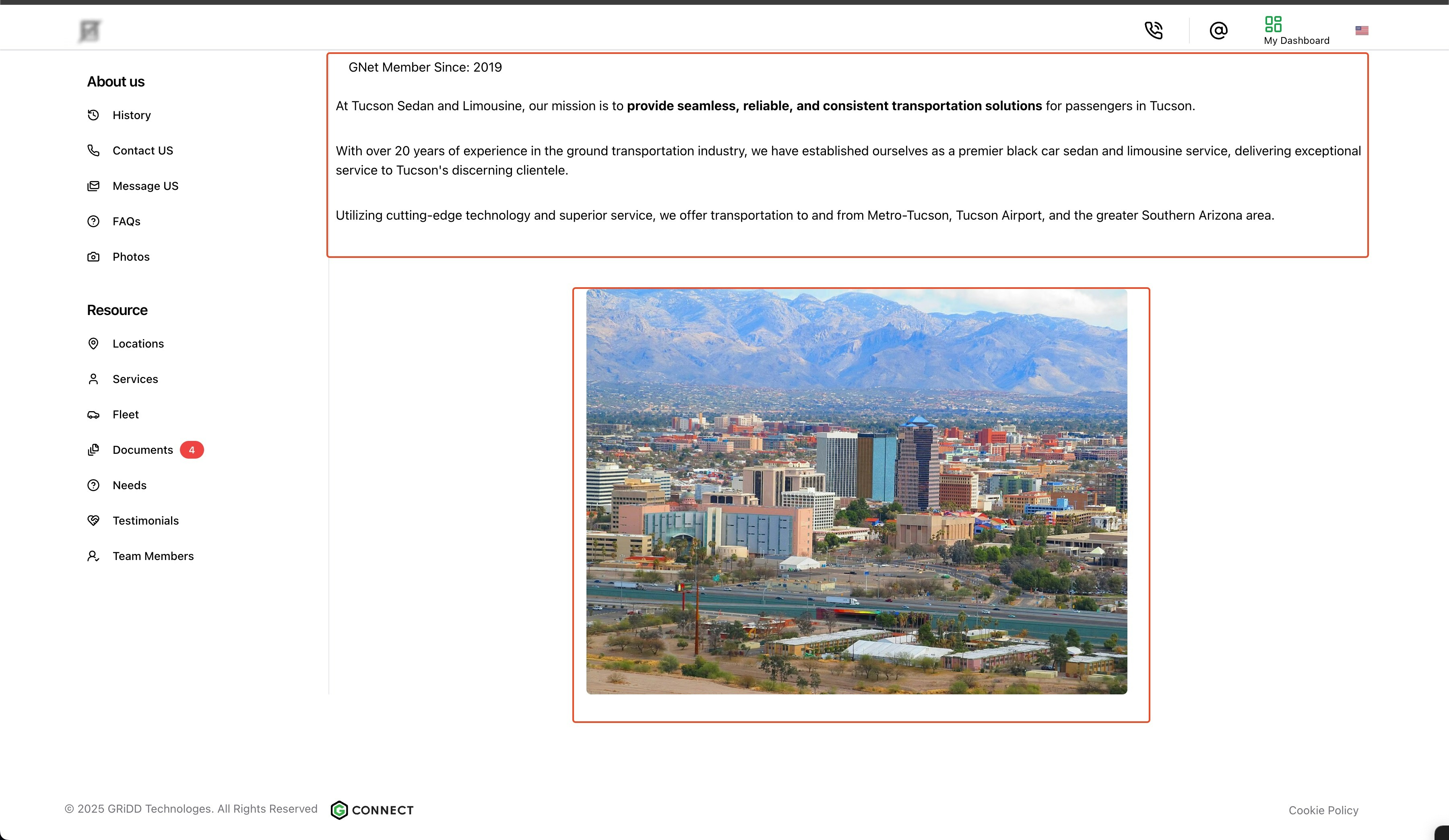
Access your page history to review recent changes:
1. Click on "history" from your public profile
2. Review the changes made to your about page
### 10. View History
Access your page history to review recent changes:
1. Click on "history" from your public profile
2. Review the changes made to your about page
 ## Best Practices
* Tell your company's story in a compelling way
* Highlight your experience and expertise
* Include team photos and bios when appropriate
* Keep content current and accurate
* Use professional, high-quality images
* Include relevant certifications and achievements
Regular updates to your about page help maintain accuracy and show active business engagement. Consider reviewing and updating your content quarterly.
## Best Practices
* Tell your company's story in a compelling way
* Highlight your experience and expertise
* Include team photos and bios when appropriate
* Keep content current and accurate
* Use professional, high-quality images
* Include relevant certifications and achievements
Regular updates to your about page help maintain accuracy and show active business engagement. Consider reviewing and updating your content quarterly.